



How to Print Photos From iPhone: An Easy Step-by-Step Guide
Your iPhone captures many special moments, from family photos to beautiful travel views. But these iPhone photos often stay in your camera roll instead of becoming memories you can hold, share, or display.
Want to know how to print photos from your iPhone? Easy! You can print directly with AirPrint or use a portable photo printer for a simpler, dedicated way to print your favorite iPhone photos. In this guide, we'll walk you through both methods step by step.
Why Print Photos From Your iPhone?
There are many good reasons to bring your digital memories to life.
Keep Your Favorite Memories: You can print family photos, vacation pictures, birthdays, or simple everyday moments you want to remember. Enjoy sharing printed photos with your family and friends.
Display Your Photos: Printed photos can become part of your home. Put them in frames, keep them in a photo album, add them to a scrapbook, or place a favorite photo on your desk.
Turn Photos Into Personal Gifts: A favorite photo can also make a simple personal gift. Print a family picture, travel memory, or special moment and give it to someone who shared that memory with you.
What to Know Before Printing Photos From Your iPhone?
Choose the Right Photo: Start with a clear original photo whenever possible. Make sure important details are in focus and clear to see.
Check Photo Resolution and Print Size: A photo may look clear on your iPhone but blurry when printed too large. Use the original, high-resolution photo and choose a smaller print size when needed.
Check the Crop and Aspect Ratio: Check the preview before printing to make sure faces and other important details are not cut off.
Make Simple Edits Before Printing: Use the Photos app to crop or straighten the image. You can also make small changes to brightness or contrast when needed. Try to keep these edits natural.
How to Print Photos From iPhone?
There are different ways to print photos from iPhone. AirPrint is convenient if you already own a compatible printer. A dedicated mini photo printer gives you another option if you want a device designed specifically for printing photos.
Here are two simple methods.
Method 1: Print Photos From iPhone With AirPrint
AirPrint is built into Apple devices. It lets you send a photo from your iPhone to an AirPrint-enabled printer without installing an extra printer driver.
Before you start, make sure you have an iPhone, an AirPrint-compatible printer, compatible photo paper, and a Wi-Fi connection. Your iPhone and printer should be connected to the same Wi-Fi network.
- Open the Photos app on your iPhone. Then choose the picture you want to print.
- Tap the Share Button. Scroll through the available options and tap Print.
- Choose Your Printer. Choose your AirPrint-enabled printer from the available devices.
- Review the available print options before you continue.
- Depending on your printer, you may be able to change settings such as paper size, number of copies, or color options.
- Tap Print to send the picture to your printer to finish.

AirPrint is a simple choice when you already have a compatible home printer. But AirPrint only works with printers that support AirPrint.
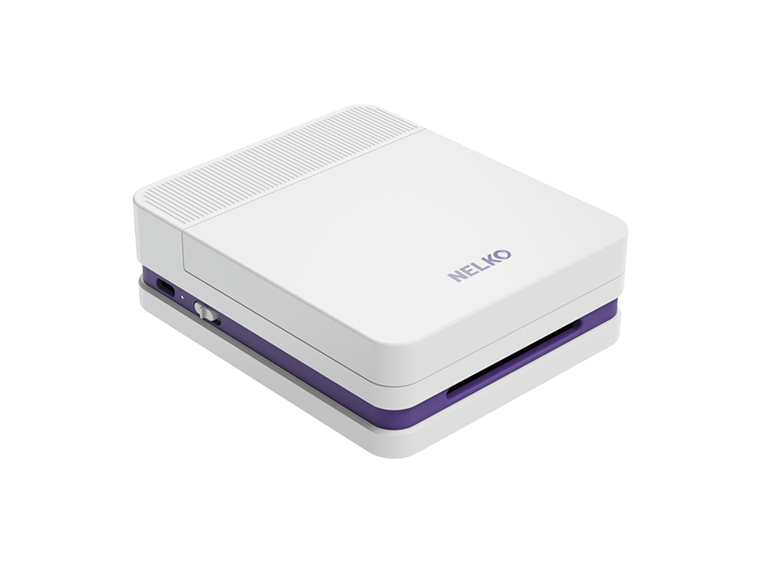
Method 2: Print Photos From iPhone With Nelko PP03 — Made Simple
Want to print your photos from your iphone anywhere and anytime? Don't miss this great option I used for many years. It is a compact Bluetooth photo printer designed to print color photos directly from iOS and Android phones.

The PP03 uses the NELKO app rather than AirPrint. It supports 52 × 90 mm photo paper with a 45 × 60 mm print area and prints at up to 600 dpi.
Step 1: Prepare the Nelko PP03
Make sure the printer has power and the ink cartridge is installed correctly. Load compatible PP03 photo paper into the paper tray. The built-in tray can hold up to 10 sheets.

Step 2: Connect the PP03 to Your iPhone
Download the NELKO app from the App Store. Turn on Bluetooth on your iPhone and give the app the required permissions. Open the NELKO app and connect to the PP03 from inside the app.

Step 3: Print Photos in the NELKO App
Once the printer is connected, stay in the NELKO app to prepare your print. Click "Photo Printing" and choose the photo you want to print from your iPhone photo library. Use the original image whenever possible.
Step 4: Adjust the Photo
Use the available tools in the app to prepare the image for printing, such as "Edit", "Rotate", "AI Photo Editing", "Collage", "Reset". Click "Edit" to edit your photos like adding text and images.

Step 5: Preview and Print the Photo
Check the image before you print it. When the preview looks right, keep the printer on and allow it to finish the printing process.
So with a mini photo printer like the PP03, you can print your favorite photos anytime, anywhere. You can also use its editing features to personalize your photos before printing.
Conclusion
Printing photos from your iPhone does not need to be complicated. Start with a clear original image, choose a suitable print size, and check the preview before printing.
AirPrint works well with a compatible printer. A portable photo printer such as the Nelko PP03 gives you a smarter way to turn digital memories into photos you can keep, display, or share.
FAQs
Can I Print Photos Directly From My iPhone?
Yes. You can print directly from your iPhone using an AirPrint-enabled printer. Just make sure your printer supports AirPrint and is connected to the same Wi-Fi network as your iPhone.
Do I Need AirPrint to Print Photos From an iPhone?
No. AirPrint is only one way to print.
Some portable photo printers use Bluetooth and a dedicated mobile app instead. For example, the Nelko PP03 connects to an iPhone through Bluetooth and the NELKO app.
Why do My iPhone Photos Look Blurry When Printed?
The original image may not have enough resolution for the selected print size.
A photo can look clear on a small iPhone screen but lose detail when enlarged. Try using the original image or choosing a smaller print.
Why is Part of My Photo Cut Off When I Print It?
Your photo and paper may have different aspect ratios.
When their shapes do not match, part of the image may need to be cropped. Check the preview before printing to make sure important parts of the photo are still visible.
Can I Print Screenshots From My iPhone?
Yes, but a screenshot may contain less image detail than the original photo. If you still have the original image, use it instead.