



How to Print Stickers with a Thermal Printer?
Want to make stickers without using ink? A thermal printer for stickers makes it easy to create simple designs, labels, and decorations right from your phone.
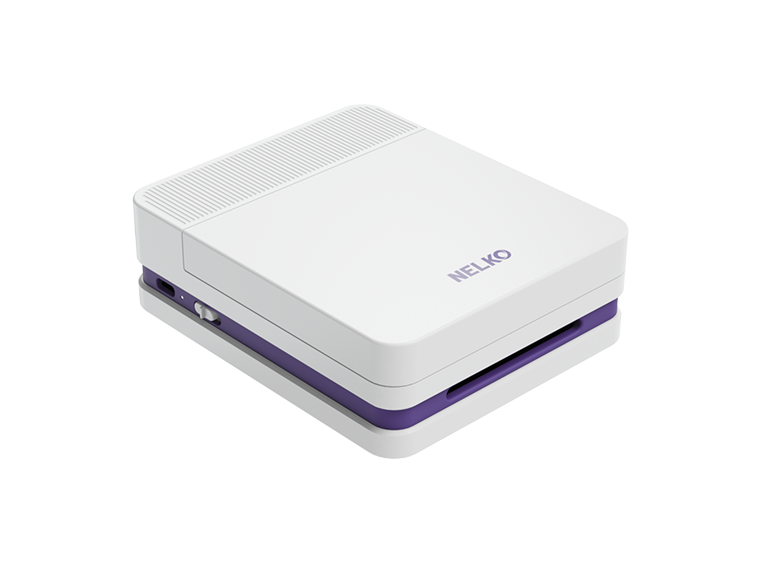
In this guide, we'll explain how to make stickers with a thermal printer using the NELKO PM230. You'll learn what supplies you need, how to print your first sticker, and how to fix common printing problems.
What Is a Thermal Printer and How Does It Work?
A thermal printer uses heat to create text and images on special paper. Unlike a regular inkjet printer, it does not always need ink or toner.
There are two main types of thermal printers:
- Direct Thermal Printers: These printers use heat-sensitive paper that darkens when heated. They do not require ink, toner, or ribbons.
- Thermal Transfer Printers: These printers use heat to transfer ink from a ribbon onto a printing material. They are often used for labels that need greater durability.
For making simple stickers at home, a direct thermal printer is a convenient option.
You can use a thermal sticker printer to create:
- Planner and journal stickers
- Label printing
- Business stickers like price tags
- QR code stickers
- custom car stickers
What Do You Need to Make Stickers With a Thermal Printer?
Before printing, prepare your printer, sticker paper, and design tools.
A Thermal Sticker Printer
Prepare a thermal sticker printer that meets your need.
For this tutorial, we'll use the NELKO PM230 sticker printer. It connects to a mobile device through Bluetooth and uses the NELKO app to create and print designs. It offers three adjustable print density levels.
Compatible Thermal Sticker Paper
Choosing the right sticker paper for a thermal printer is important.
For the NELKO PM230, choose self-adhesive thermal sticker paper specifically compatible with this model. You can choose different color papers to create stickers.

A Smartphone and the NELKO App
The PM230 prints from a compatible mobile device through Bluetooth.
Download the NELKO app on your phone before starting. You can use its fonts, filters, and themes to customize your sticker designs.
A Sticker Design
You can create your own design or select an existing image.
Simple text, illustrations, and black-and-white graphics are good starting points.
For your first sticker, choose a design with clear lines and limited detail. This will make it easier to check the print quality.
How to Make Your Own Stickers With a Thermal Printer: Step-by-Step Guide
Once you have your supplies ready, follow these steps to print stickers using the NELKO PM230.
Step 1: Turn on Your NELKO PM230 and Load the Sticker Paper
Press the power button to turn on it.
Next, prepare a roll of compatible self-adhesive thermal sticker paper. Open the printer's paper compartment.
Load the thermal paper roll and leave a short section through the exit.
Close the compartment securely before printing.

Step 2: Connect the PM230 to Your Phone
Enable Bluetooth on your smartphone and open the NELKO app.
Find and connect your PM230 printer in the APP.
Once the printer is connected, you can start creating or selecting your sticker design.
Remember that the PM230 uses Bluetooth for mobile printing. You do not need to install a computer printer driver.

Step 3: Create or Select Your Sticker Design
Open the System Templates in the NELKO app.
You can choose an existing image or create a new design using the available fonts, filters, and themes.
When designing thermal printer stickers, keep these points in mind:
- Use clear text that is easy to read.
- Choose simple graphics with strong outlines.
- Avoid placing too many small details in one design.
Because the PM230 prints in black and white, designs with clear contrast usually work better than images that depend on several colors.
Step 4: Preview the Sticker and Tap "Print"
Before printing, check how your design appears in the app's print preview.
When your design is ready, tap Print and start to make stickers.

Step 5: Apply Your Sticker
For self-adhesive sticker paper, remove the backing and apply the sticker to a clean, dry surface.
You can use your finished stickers to decorate notebooks, organize supplies, or personalize everyday items.
Common Sticker Printing Problems and How to Fix Them
Why Can't My Phone Find the NELKO PM230?
If your PM230 is not found or Bluetooth is not showing the printer, first check that the printer is turned on and close to your phone.
Turn Bluetooth off and back on, then reopen the NELKO app and try connecting again. If the printer is already paired with another phone, disconnect it from that device before trying again.
Why Are My Stickers Printing Too Light or Blurry?
A faded print or unclear image may be caused by low battery power, unsuitable sticker paper, or a dirty print head.
Check the PM230's battery level and make sure you are using compatible NELKO sticker paper. If the print quality is still poor, gently clean the print head according to the printer's instructions and try printing again.
Why Is My PM230 Printing Blank Stickers?
If your PM230 is printing blank stickers, the paper may be loaded in the wrong direction.
Open the printer and check that the printable side of the thermal paper faces the print head. Close the cover securely, reconnect the printer through the NELKO app, and print another sticker to see if the problem is resolved.
Why Does My Printed Sticker Look Different From the Screen?
The NELKO PM230 prints in black and white, so colorful images will not appear the same as they do on your phone.
For better results, choose designs with strong contrast, clear outlines, and minimal background details. Simple black-and-white graphics are generally easier to reproduce with thermal printing.
Why Is My Sticker Paper Not Feeding Smoothly?
If the sticker paper is not feeding correctly, the roll may be misaligned or the paper may be bent.
Open the printer and reload the sticker roll, making sure it can move freely. Remove any wrinkled or damaged paper, close the cover properly, and try printing again.
Tips for Better Thermal Stickers
A few simple habits can help improve the appearance and condition of your thermal stickers.
Protect Stickers From Heat and Sunlight
Direct thermal prints can fade when exposed to heat or strong sunlight.
Store unused thermal sticker paper in a cool, dry place. Keep finished stickers away from prolonged heat and direct sunlight when possible.
Keep Your Printer Clean
Dust and paper residue can affect printing over time. Regular care can help maintain consistent print quality.
Test Before Printing Multiple Stickers
Print one sticker first to check the design and overall appearance.
This can help you avoid wasting sticker paper if the layout or print darkness needs adjustment.
Conclusion
Creating your own stickers with a thermal printer is a simple and affordable way to create custom labels and designs. With a compatible thermal printer, the right sticker paper, and a clear design, you can easily make stickers for small businesses, home organization, or creative projects without using ink.
FAQs:
Does a thermal sticker printer need ink?
No. The thermal sticker printer like NELKO PM230 uses direct thermal printing, so it does not need ink, toner, or ribbons.
Can multiple phones connect to a sticker printer at the same time?
It depends. The PM230 is designed to connect with one mobile device at a time. To use another phone, disconnect the printer from the current phone first, then connect it through the NELKO app on the second phone.
Can the sticker printer print QR codes or barcodes?
Usually yes. You can create QR code and barcode-style labels in the NELKO app. For better scanning, keep the code large enough and test the PM230 before using it on important items.
How can I make text and icons print more clearly?
Use high-contrast designs, avoid very tiny text, and keep enough space between icons, lines, QR codes, or barcodes. Preview the design before printing.
Can I use third-party sticker paper with a sticker printer?
For the best printing experience, we recommend using specific sticker paper made for the same brand. If you use PM230 for printing stickers, non-NELKO paper may cause feeding issues, poor print quality, or adhesive problems.