



Why QR Codes Get Blurry and How to Avoid It?
Imagine sending 500 flyers to print, opening the first box, and scanning the QR Code — only to find that it does not work. There is no landing page or lead capture, just a blurry QR Code that breaks the connection with your campaign.
This happens when the dark and light modules lose definition or blend together. This can make it difficult for scanners or phones to recognize and scan the pattern. Fortunately, most blurry QR Code problems are easy to avoid. Follow with us to learn more about it.
What Is a QR Code and Why Does Blur Matter?
A QR Code (Quick Response Code) is a square-shaped barcode that smartphones and other digital devices can scan to quickly access information. It can hold different types of data, including website URLs, text messages, contact information, social media pages, and even specific location details.
When blur makes the edges less clear, the modules can start to merge. A phone may then have trouble telling where one module ends and another begins. This can cause delayed scans, incorrect scans, or complete scan failure.
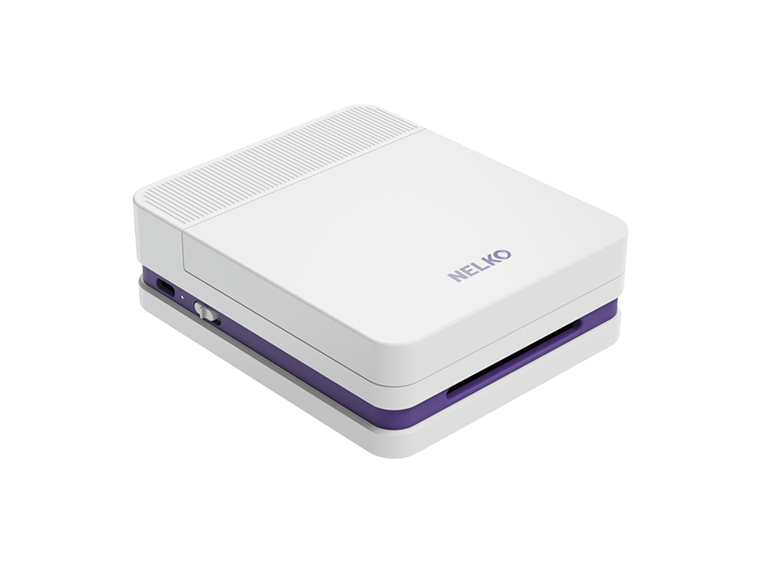
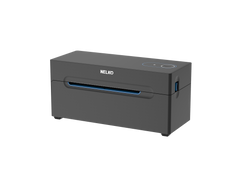
For example, a business may use a thermal shipping label printer to print QR Codes on shipping labels. If the QR Code is blurry, workers may not be able to scan it quickly, which can slow down shipping or order processing.
Why Do QR Codes Get Blurry?
Several factors can make a QR Code blurry and difficult to scan. Here are some of the most common causes:

Low-Resolution Files or Printing
QR codes are made of small squares that store data. These squares need clear edges.
A low-resolution printer may not reproduce these small squares clearly. The squares can blur together and become difficult for a scanner to read.
The source file can also cause the problem. A compressed JPEG can create unwanted artifacts. A small PNG can become pixelated when enlarged.
Incorrect QR Code Size or Scaling
Many printers have different modes for speed and print quality. Using a low-quality setting like draft mode makes printing faster but reduces detail.
As a result, QR Codes may look blurry and become harder to scan.
Poor Contrast or Too Many Design Elements
The QR code needs enough contrast from its background.
A light gray QR code on a white background. The scanner may struggle to separate the individual modules because the colors are too similar.
Logos and patterns can also affect scanning when they cover too much of the QR code. It should stay centered and cover about 30% or less of the code area.
Missing Quiet Zone
The blank margin around a QR code is called the quiet zone.
This space helps the scanner find where the QR code begins.
Cropping this space or placing other design elements too close to the code can make scanning more difficult.
Improper Printer Settings
Printer settings can affect how clearly a QR code comes out.
Some printer modes focus more on speed than print quality. Draft mode is one example. It can reduce detail and produce a blurry QR code.
For thermal printers, settings such as resolution, darkness, print speed, and heat distribution can also affect the printed result.
Unsuitable Printing Materials
The paper or label material can affect QR code clarity.
Low-quality or incompatible materials can cause smudging or distortion. Printed areas may become blurry or faded.
So smooth or matte materials can help reduce glare and ink bleed.
Physical Damage
A QR code can become difficult to scan after it is printed.
Scratches, tears, and folds can damage the pattern. If parts of the code are missing or distorted, the scanner may not be able to read the stored data correctly.
Lighting or Scanner Problems
The QR code itself is not always the problem.
Poor lighting can make it difficult for a phone camera to capture the details of the code.
A faulty phone camera or an outdated QR code scanning app can sometimes cause scanning problems.
How to Avoid Blurry QR Codes?
Once you know what is causing the problem, you can check the file, size, design, printer, and material one by one.

Use a High-Resolution QR Code File
Start with a clear source file.
You can use SVG format when possible. SVG is a vector format, so it stays sharp when resized. PDF and EPS are also listed as vector options for print. If you need PNG, use a high-resolution file.
Avoid screenshots, compressed JPEGs, low-quality JPGs, and QR codes copied from preview windows. These files can already contain blur before printing begins.
Use the Right QR Code Size
Measure the QR code after it is printed.
For typical smartphone scanning, keep it at least 2 × 2 cm. 3 × 3 cm for dense QR codes, packaging, event signs, or situations where people scan from farther away.
Keep the original shape when resizing the QR code. Do not stretch or compress it.
Keep the Design Clear
Use strong contrast between the QR code and its background.
Using black modules on a white background is the safest high-contrast option for keeping a QR Code clear and easy to scan.
Keep the quiet zone clear as well. Leave about four modules of blank space around the QR code. Do not let photos, patterns, or other design elements enter this area.
If you add a logo, keep it centered and limit it to about 30% of the QR code area or less.
Use the Right Printer and Print Settings
Using a barcode label printer designed for detailed QR code printing rather than relying on a standard office printer for this type of work.
Check the printer settings before printing. And checking resolution, darkness level, print speed, and heat distribution for thermal printers.
Do not use a low-quality or draft print mode when clear QR code detail is important.
Choose Suitable Printing Material
The paper or label material you use can affect how clearly a QR Code prints. Rough or uneven surfaces may make the edges less sharp and harder to scan.
For better results, choose smooth, high-quality labels designed for barcode and QR Code printing.
Print and Test a Sample
Do not start mass printing immediately.
Print one sample first. Scanning the proof with at least two different smartphone cameras. Test it at the expected scanning distance and under different lighting conditions.
If the QR code does not scan well, adjust the design, print settings, or QR code generation process and test it again.
Use a Dynamic QR Code When Reprinting Is Not Possible
QR Code Generator gives one more option for materials that have already been shipped or distributed.
A Dynamic QR Code lets you change the destination URL without changing the physical QR code.
This can help when the printed materials cannot be replaced immediately. You can update the destination while correcting the source file for future print runs.
Conclusion
Clear QR Codes create a smoother experience for users, reduce scanning problems, and help your audience access information quickly. By understanding what causes blurry QR Codes and following the tips above, you can keep your codes sharp, clear, and easy to scan.
FAQs
Can a blurry QR code still scan?
A slightly blurry QR code may sometimes scan.
Blur can make scanning more difficult and may cause failed or delayed scans. If the modules merge too much, the scanner may no longer interpret the stored data correctly.
Why is my QR code clear on screen but blurry when printed?
The problem may come from the printing stage.
Low printer resolution can reduce detail. Printer settings can also affect the result. Print speed and density can affect QR code clarity on thermal printers.
The printing material can also cause smudging or distortion.
Can I fix a blurry QR code without reprinting it?
A blurry digital source can be regenerated or exported again at a higher quality.
A physically blurry print is different. Software cannot restore detail that was lost during physical printing.
In that case, regenerate the source if needed and print the QR code again at the correct resolution and size.
What happens if I scan a damaged QR code?
It depends on how badly the QR Code is damaged. A scanner may show an error, display incomplete information, or fail to recognize the code at all.
Can I edit a blurry QR code to make it scannable?
Editing a blurry QR Code is usually not recommended. Changing its original structure may damage the stored data even more and make the code impossible to scan.