



How to Print Shipping Labels for Small Businesses: Easy Steps Guide
When I started my small business, shipping orders was easy because I only handled a few packages at a time. But as my orders grew, printing shipping labels became more time-consuming than I expected. Switching between platforms, adjusting label settings, and fixing printing mistakes slowed down my workflow. I needed a faster and easier way to manage shipments.
A shipping label printer helps simplify the process by making it easier to create and print labels whenever an order is ready. In this guide, I'll show you how to print shipping labels and improve your shipping workflow.
What You Need Before Printing Shipping Labels?
Before you start printing shipping labels, prepare a few basic tools. You will need a shipping label printer, and a computer or mobile device connected to the printer. Prepare the thermal labels if needed. Having the right setup helps avoid common printing issues and keeps your shipping process running smoothly.
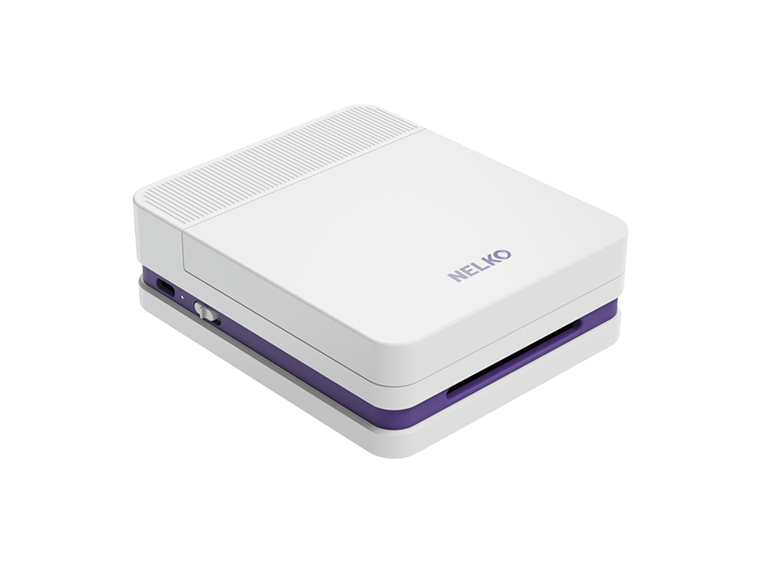
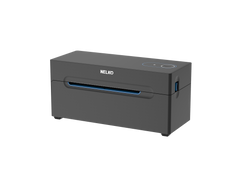
Now, I will show you how to print shipping labels using Nelko's PL70E. It supports different size of printer paper, including compatible 4×6 thermal labels.

How to Print Shipping Labels with Nelko PL70E?
The Nelko PL70E makes printing shipping labels simple with a straightforward setup process.
Before connecting the printer to your device, make sure it is powered on. Follow the steps below this picture:

Connect Nelko PL70E via Phone (Bluetooth)
If you want to use your phone to print labels, just simply follow these steps:
- Download and install the Nelko app in your phone.
- Turn on the PL70E printer.
- Open the app and allow Bluetooth, location, and storage permissions.
- Tap "Not connected" to add the printer. Select the PL70E printer and connect it.
- Choose the shipping label file you want to print, adjust the settings if needed, and start printing.
Tips: Bluetooth printing is available for mobile phone and Windows, not Mac. For Mac, you need to connect the printer via USB cable and install driver file.
Connect Nelko PL70E to Windows via Bluetooth
Windows users can also connect the PL70E through Bluetooth after installing the printer driver, Nelko pl70e-bt driver.
Steps:
- Power on the PL70E printer.
- Find "Support Driver & User Manual" on the U-disk or official website, then download and install the driver file.
- Open the driver installation tool.
- Select Bluetooth as the connection method. Click "Next".
- Choose the PL70e-BT driver from the available list.
- Complete the installation and click on "Print Test Page" to confirm the setup.
Tips: Keep your device and printer within 5 meters for a stable Bluetooth connection. If Bluetooth printing on Windows takes longer to respond, use a USB connection instead for faster and more reliable printing.

Connect Nelko PL70E to Windows via USB
If you prefer a wired connection, the PL70E can also connect to Windows computers using a USB cable.
Steps:
- Power on the printer and connect it to your computer with the USB cable.
- Install the Windows driver from Nelko's website or the included U-disk. It's a necessary step to download nelko pl70e driver.
- Select USB as the connection method.
- Choose PL70e-BT and complete the installation.
- Specify the printer name by yourself.
- Print a test page to check whether the printer is set up correctly.

If you want to change printer settings, follow these tips:
- Go to "Settings" → "Bluetooth & devices" → "Printers & Scanners" → "PL70e-BT".
- Click on "Printing preferences" to set the page size or adjust print darkness.

Connect Nelko PL70E to Mac via USB
For Mac users, the PL70E connects through USB.
Steps:
- Power on the printer and connect it to your Mac using the USB cable.
- Download and install the nelko printer Mac driver from Nelko's website or the included U-disk.
- Open System Preferences → Printers & Scanners.
Click "Add Printer, Scanner, or Fax..." to add a printer. Select "PL70e-BT". - Select the "PL70e-BT", then click on "Add" to finish.

Tips: If your mac does not have a USB-A port, use the included adapter to connect the printer directly. Avoid using a USB hub or docking station, as it may prevent your computer from detecting the printer.
If you want to change printer settings, follow these tips:
Open any PDF file, click on "Show more", then click on "Page size" to select or manage the page size.

Load Labels and Start Printing
After connecting the PL70E, load your thermal labels before printing.
- Turn on the printer and adjust the paper guides.
- Insert the labels into the paper inlet.
- The printer will automatically feed the labels into position.
- Open your shipping label file and select the correct paper size before printing.
- Now, with Nelko pl70e driver, you can print shipping labels easily.
Platform-Specific Guides for Printing Shipping Labels
Different platforms may have slightly different interfaces, but the overall process of printing shipping labels is very similar. Whether you use Shopify, Etsy, eBay, Amazon, or shipping services like USPS and UPS, just go to the specific platform to create an order and generate the shipping labels.
Then check that the label size matches your thermal label, such as the standard 4 × 6 inch shipping label format. Download the file and come to shipping label printer like Nelko's PL70E to finish it. Attach the label securely to your package and make sure the barcode is visible and easy to scan.
Conclusion
Choosing the right label printer for your small business is about finding a solution that fits your daily workflow. With the right preparation and printer setup, anyone can create shipping labels more efficiently and keep orders moving smoothly. So give it a try and see how it can support your business!
FAQs
What do I need to print shipping labels?
To print shipping labels, you typically need a shipping label printer, 4×6 thermal labels, and a computer or device connected to the printer. Access to a shipping platform such as Shopify, Etsy, Amazon, USPS, UPS, or FedEx to create and download your shipping labels if needed.
Do I need a shipping label printer to print shipping labels?
No, you can print shipping labels with a regular inkjet or laser printer. However, a dedicated thermal shipping label printer is a more efficient option if you frequently ship orders. Thermal label printers are designed for high-volume label printing, do not require ink or toner, and work directly with standard 4×6 shipping labels.
What size label should I use for shipping labels?
The most common size for shipping labels is 4×6 inches. Most shipping platforms, including Amazon, Shopify, Etsy, USPS, and UPS, support 4×6 thermal labels, which are designed to fit most shipping label printers.
Do thermal shipping label printers need ink?
No. Most thermal shipping label printers use direct thermal technology, which creates images by applying heat to specially coated labels. This means they do not require ink cartridges, toner, or ribbons, helping reduce maintenance costs and making them convenient for regular shipping tasks.
Why is my shipping label printer printing blank labels?
Blank labels are often caused by incorrect label loading or using labels that are not compatible with thermal printing. Check that the thermal labels are installed in the correct direction and that the printable side is facing the right way.
Why are my shipping labels blurry or unclear?
Blurry printing can happen when the printer head needs cleaning, the print settings are incorrect, or the labels are poor quality. Cleaning the thermal print head regularly and adjusting print settings can help maintain clear text and barcodes.
Can I print shipping labels directly from my phone?
It depends on your printer model and connection method. Some shipping label printers support mobile printing through Bluetooth or dedicated apps, while USB-only printers usually require a computer connection. Check your printer's supported connection options before setting up mobile printing.
Can I use the shipping label printer at home?
Yes. You can use it at home for shipping labels, return labels, storage labels, barcode labels, and other supported thermal label formats.
Can I use a portable label printer for small business shipping?
Yes. The shipping label printer like PL70E is built for online sellers, small businesses, warehouses, and daily shipping workflows. It can print 4 × 6 shipping labels and other supported thermal label sizes.
How do I keep my shipping label printer working properly?
Regular maintenance helps keep your printer running smoothly. Store it in a clean, dry place, use compatible thermal labels, and clean the print head when you notice faded or unclear prints. Regularly checking printer settings can also help prevent printing errors.