



Frequently Asked Questions
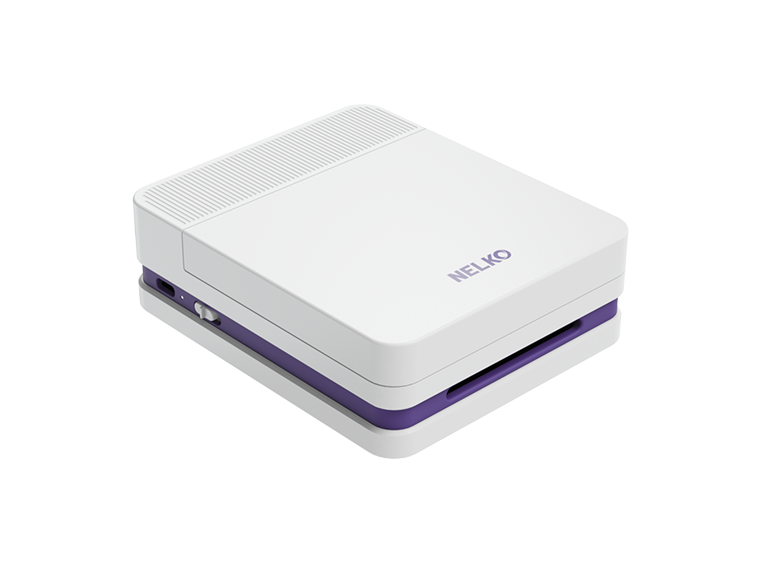
PP Series FAQ
Can I connect the printer to a computer?

No. The PP Series photo printers are designed for mobile Bluetooth printing and should be connected through the NELKO app on a phone. They do not support computer printing.
Which phones can I use with the printer?
The PP Series supports Bluetooth connection with iOS and Android mobile devices through the NELKO app. Before printing, make sure Bluetooth is enabled and the app has the required photo access permissions.
Why can't my phone connect to the printer?
Connect the printer inside the NELKO app, not from your phone's system Bluetooth settings. Turn on Bluetooth, restart the app, printer, and phone, then try connecting again in the app. If it still fails, update the app and printer firmware, remove old Bluetooth pairing records, and try another phone to rule out a device-specific issue.
Should I pair the printer in my phone's Bluetooth settings?
No. Please do not pair the printer from your phone's system Bluetooth settings. Open the NELKO app and connect the printer from inside the app instead.
Why does the printer disconnect or fail to connect after working before?
First update the NELKO app to the latest version, then restart the app, printer, and phone. If the issue continues, try connecting with another phone. If only one phone has the issue, note the phone model, OS version, app version, and printer firmware version, then send these details to our support team.
Why does the app need access to my photos?
The app needs photo access so you can select images from your phone and send them to the printer. If you denied photo permission, open your phone settings, allow photo access for the NELKO app, then reopen the app and try again.
Why is the firmware update required?
Firmware updates help keep the printer compatible with the latest version of the app. If the firmware is too old, the app may not connect to the printer or print normally.
How do I check the app and firmware version?
Connect the printer in the app, open the device details page, and check the firmware version. To check the app version, go to the app's profile or account area and look near the bottom of the page. For known incomplete-printing issues, use PP01 firmware 1.3.8939 or later, PP03 firmware 1.3.8940 or later, and update the app to Android 4.7.2+ or iOS 4.9.3+.
Why doesn't the printer print after I tap Print?
Check whether the photo paper is jammed, folded, or loaded with more than 10 sheets. Make sure the cartridge is installed correctly. Then close the app, turn off the printer, wait about three minutes, restart both the app and printer, and print again.
Why does the app freeze or get stuck while printing?
Restart the app and printer, then try printing again. If the issue happens repeatedly, update the app and firmware. If the app freezes during an incomplete print, do not close the app before submitting feedback, because closing it may erase useful error logs.
Why doesn't the printer print after I tap Print?
Check whether the photo paper is jammed, folded, or loaded with more than 10 sheets. Make sure the cartridge is installed correctly. Then close the app, turn off the printer, wait about three minutes, restart both the app and printer, and print again.
Why does the app freeze or get stuck while printing?
Restart the app and printer, then try printing again. If the issue happens repeatedly, update the app and firmware. If the app freezes during an incomplete print, do not close the app before submitting feedback, because closing it may erase useful error logs.
How do I fix incomplete printing or missing parts of a photo?
First check the printer firmware and app version. For PP01, use firmware 1.3.8939 or later; for PP03, use firmware 1.3.8940 or later. Also update the app to Android 4.7.2 or later or iOS 4.9.3 or later. If the issue continues on the latest versions, keep the app open, submit feedback in the app, and send your account ID to our support team.
Why is there a NELKO mark on my printed photo?
The photo paper was likely loaded upside down. Load the photo paper with the printable side facing down, then try printing again.
Why does the printed photo smudge when I touch it?
The paper may be loaded in the wrong direction. Reload the photo paper with the printable side facing down. Also avoid touching the printed surface immediately after printing.
How many sheets of photo paper can I load at once?
Load no more than 10 sheets at a time. Overloading the paper tray may cause paper jams, feeding errors, or failed prints.
Why does the app say there is no paper when paper is still inside?
To reduce print interruptions, the printer may show a low-paper or no-paper alert when the remaining paper is too low. For smoother printing, keep 2 to 10 sheets in the paper tray and make sure the paper is flat and properly aligned.
How can I prevent paper jams?
Use NELKO photo paper made for the PP Series, store the paper in a cool and dry place, and do not use damp, curled, wrinkled, or damaged paper. Before loading, gently fan the sheets to reduce static, stack them neatly, and do not exceed the 10-sheet capacity.
How do I safely remove jammed photo paper?
Open the printer cover and locate the jammed paper. Hold both sides of the paper and pull slowly and evenly along the paper path. Do not tear the paper or leave scraps inside the printer. After removing the main jam, check for small paper pieces before reloading paper.
Will my photo continue printing after I clear a paper jam?
Usually no. After clearing a paper jam, resend the print job from the app. If the printer still shows an error, restart the printer, reload the paper and cartridge, then try again.
Why does the printer still show an error after I remove the jammed paper?
Make sure all covers are fully closed, restart the printer, and let it run its self-check. If the error remains, remove the cartridge and all photo paper, turn off the printer for one minute, reload the cartridge and paper, then power it on again.
Why are my printed photos not clear?
Use a high-resolution source image, print within the recommended temperature and humidity range, and make sure the printer is fully charged. If the cartridge has been exposed to air for a long time, gently wipe the nozzle plate in one direction with a lint-free cloth or wet wipe, then let it dry before printing.
What should I do if the print quality gets worse or the photo prints blank?
Check whether the cartridge has enough ink. If the cartridge may have dried out, gently wipe the nozzle plate in one direction with a lint-free cloth or wet wipe. To help prevent drying, print at least once a week, ideally every 3 to 5 days.
Why do my photos look green, red, or yellow?
First check the original image and make sure no strong filter or color adjustment is applied in the app. Then run the printhead cleaning function in the app. If the issue continues, check that the cartridge is installed correctly, gently clean the nozzle plate, update the firmware, and print again.
Why do printed colors look different from my phone screen?
Phone screens and printed photos use different color display methods, so a printed photo may not look exactly the same as the image on your screen. For best results, use a high-resolution image, avoid heavy filters, and print within the recommended temperature and humidity range.
Why are there lines or streaks on the photo?
Run the printhead cleaning function in the app. If lines remain, gently wipe the printhead nozzle with a clean lint-free cloth dampened with water, always wiping in one direction and avoiding the electronic contacts. Let the printhead dry completely before printing again.
Why is my printed photo distorted or misaligned?
Close the app, turn off the printer, wait about three minutes, then restart both the app and printer and print again. If the problem continues, contact our support team for further assistance.
Why is the printed image smaller than the photo paper?
The PP Series uses 2 x 3 inch photo paper, but the actual printable area is smaller than the full sheet. A bottom tear-off area or blank margin is normal. Please check the model's print area before ordering if full-sheet printing is required.
What photo paper size does the PP Series use?
Use 52 x 90 mm photo paper with a 45 x 60 mm print area.
Why won't my printer charge?
Make sure the USB cable and power adapter are connected properly. Charge the printer within the recommended temperature range and avoid using a damaged cable or adapter. If the printer still will not charge, contact our support team.
How many photos can I print on a full charge?
PP01, PP03, and NELKO FLOW can print at least 55 photos on a full charge under standard test conditions. Actual battery life varies with image coverage, temperature, connection status, and battery age.
How many cartridges are included, and how many photos can one cartridge print?
Each PP Series printer includes one ink cartridge. One cartridge can print at least 60 photos under standard test conditions. Actual yield varies with image coverage and usage conditions.
Why can't I install the cartridge?
Turn on the printer before installing the cartridge. Push down the cartridge cover so the cartridge holder moves to the center. If the holder does not move, close the cartridge cover and open it again, then install the cartridge firmly.
Why doesn't the printer recognize my new cartridge?
Make sure all protective tape, stickers, or plastic covers have been removed from the cartridge. Reinstall the cartridge firmly until it clicks into place, then turn the printer off for 1 to 2 minutes and power it on again. If needed, gently clean the cartridge and printer contacts with a lint-free cloth.
What if the cartridge still isn't recognized after troubleshooting?
The cartridge chip, cartridge contacts, printer contact springs, or internal sensor may be causing the issue. If cleaning and reinstalling do not solve it, contact our support team with your order information, printer model, cartridge photos, and a short video of the error.
What should I do if the ink cartridge leaks?
A small amount of ink may leak during air shipping because of pressure changes and vibration. Open the transparent bag carefully, wipe the outside of the cartridge and metal contacts with a tissue or soft cloth, let it dry, then install it. If the first print has mixed colors or streaks, run the printhead cleaning function in the app.
Can I use non-NELKO photo paper or cartridges?
For best print quality and smoother feeding, use NELKO photo paper and cartridges designed for your PP Series printer. Non-matching consumables may cause feeding errors, poor print quality, or recognition issues.
Does the photo paper have adhesive backing?
PP01 photo paper has adhesive backing. PP03 photo paper is non-adhesive, but PP01 and PP03 photo paper can both be used with the supported printers. Check the product page before ordering if adhesive backing is required.
Where can I buy replacement photo paper or cartridges?
Replacement PP Series photo paper and cartridges are available from our online store and official sales channels. Make sure the consumable matches your printer model before ordering.
How should I store photo paper and cartridges?
Keep photo paper in its original packaging and store it in a cool, dry place away from moisture, dust, and direct sunlight. Keep cartridges sealed until use. If a cartridge has been exposed to air for a long time, the ink may dry and affect print quality.
Is NELKO photo paper safe to bring through airport X-ray screening?
Yes. NELKO photo paper is airport-friendly and does not require special handling like traditional instant film. Pack your photo paper normally for travel.
Can I edit a photo before printing?
Yes. You can preview and edit photos in the app before printing. This helps you adjust the image first and reduce wasted prints from unsatisfactory results.
What image file format should I use?
For the most reliable printing, use JPG images. If your photo is in another format, convert or save it as JPG before printing if the app cannot process it normally.
What should I do if photo paper, cartridge, or accessories are missing from the package?
Contact our support team with your order number, printer model, photos of everything included in the package, and the missing item. Once we verify the order, we will help arrange a replacement for the missing accessory or consumable.
What should I do if I did not receive my order?
Contact our support team with your order number and shipping details. We will check the shipment status and help you with the next step.
P21 FAQ
What can I use the NELKO P21 for?
The P21 is designed for small everyday labels, such as home organization labels, office labels, school supplies, storage boxes, jars, gift tags, and simple creative labels. It is not designed for 4×6 shipping labels or full-page document printing.
Does the P21 need ink, toner, or ribbons?
No. The P21 uses inkless thermal printing, so it does not need ink, toner, or ribbons. You only need compatible thermal label rolls for printing.
Can the P21 print in color?
No. The P21 is a thermal label printer and prints in black. You can use different label paper styles or background colors if they are compatible with the P21, but the printed content itself is black.
Which phones can I use with the P21?
The P21 works with iOS and Android mobile devices through the NELKO app. Before connecting, make sure Bluetooth is enabled and the app has the required permissions.
Can I print from a computer with the P21?
The NELKO P21 is made for mobile printing through the NELKO app on iOS and Android devices. For computer printing or bulk shipping-label tasks, we recommend choosing a NELKO model designed for desktop or shipping-label use. Such as PL70E
Can I print through the USB-C cable?
No. The USB-C cable is used for charging the P21. To print labels, please connect the printer to the NELKO app through Bluetooth.
Which app should I use with the P21?
Use the NELKO app to connect the printer, create labels, choose templates, edit text, and send labels to print. Download the app from the Apple App Store or Google Play.
Should I pair the P21 in my phone's Bluetooth settings?
No. Do not connect the printer from your phone's system Bluetooth settings first. Turn on Bluetooth, open the NELKO app, and connect the P21 from inside the app.
Why can't my phone find the P21?
Make sure the printer is powered on, Bluetooth is enabled, and your phone is close to the printer. Open the NELKO app and search for the printer inside the app. If it still does not appear, restart the printer, app, and phone, then try again.
Why can't my phone connect to the P21 after it was connected before?
Restart the printer and the NELKO app, then reconnect inside the app. If the printer was connected to another phone, disconnect it there first. If the issue continues, remove old Bluetooth records, update the app, and try again near the printer.
Can multiple phones connect to one P21 at the same time?
The P21 is designed to connect with one mobile device at a time. To use another phone, disconnect the printer from the current phone first, then connect it through the NELKO app on the second phone.
Why does the NELKO app ask for Bluetooth or location permission?
The app needs Bluetooth permission to find and connect to the printer. On some Android phones, location permission may also be required for Bluetooth device discovery. Allow the requested permissions, then reopen the app and connect again.
Why does the app ask for photo or camera permission?
The NELKO app may request photo or camera permission when you use image, icon, QR code, barcode, or camera-related label features. You can allow the permission in your phone settings to use these functions normally.
Can I save and reuse label templates?
Yes. You can create labels in the NELKO app and reuse templates or saved designs for repeated labeling tasks. This is useful for storage labels, office labels, price tags, and daily organization.
What label sizes does the P21 support?
The P21 works with NELKO label rolls made for the P21 series. Please choose P21-compatible label paper from the official NELKO store or product page to make sure the size, feeding, and printing results match your printer.
Can I use third-party label rolls with the P21?
For the best printing experience, we recommend using NELKO label rolls made for the P21. Non-NELKO labels may not fit correctly and may cause feeding errors, poor print quality, or adhesive issues.
Can the P21 print continuous labels?
The P21 is designed for compatible P21 label rolls. If you need long continuous labels, please choose a NELKO printer and label paper combination that supports continuous label printing.
How do I load label paper into the P21?
Open the cover, place the compatible label roll inside, pull a short section of label paper out through the exit, then close the cover firmly. In the app, choose the correct label size before printing.
Why does the app say no paper or paper error?
Open the cover and reload the label roll. Make sure the label paper is compatible with the P21, the roll is placed correctly, a short section comes out of the exit, and the cover is fully closed. Then select the correct label size in the app and try again.
Why are my labels feeding incorrectly or skipping labels?
This usually happens when the label roll is loaded incorrectly, the wrong label size is selected in the app, or dust affects the paper path. Reload the label roll, choose the correct label size in the NELKO app, and clean the paper path if needed.
Why is the P21 printing blank labels?
Blank labels usually mean the label paper is loaded incorrectly, the wrong label type is being used, or the thermal side is not facing the print head. Reload the label roll, use compatible thermal labels, and try again.
Why is the print light, faded, or unclear?
Make sure the printer has enough battery and that you are using P21-compatible NELKO thermal labels. You can also check the print settings in the NELKO app. If the print is still unclear, gently clean the print head and try a new label roll.
Why are some lines or parts of the label missing?
Check whether the label roll is wrinkled, damp, stuck, or loaded unevenly. Clean the print head, reload the label roll, update the app if needed, and print again.
Why is my text cut off or printed off-center?
Choose the exact label size in the app and check the template margins before printing. If the label roll is not aligned straight, reload it and make sure the cover is closed properly.
Why is my label printing too small or too large?
Check the label size and template settings in the app. If the selected label size does not match the installed label roll, the design may print too small, too large, or in the wrong position.
Can the P21 print barcodes or QR codes?
The NELKO app supports barcode and QR code label creation. For better scanning results, keep the code large enough, avoid overly crowded designs, and test the printed code before using it on important items.
Can the P21 print photos or detailed images?
The P21 is a compact thermal label printer, so it is best for text, simple icons, QR codes, barcodes, and basic black-and-white graphics. For photo printing, please choose a NELKO photo printer instead.
What is the print resolution of the P21?
The P21 prints at 203 dpi, which is suitable for small text labels, organization labels, simple icons, barcodes, and QR codes when the design is set up correctly in the NELKO app.
How can I avoid wasting labels when editing?
Preview the label in the NELKO app before printing. Check the selected label size, text position, font size, and margins first, then print only after the preview looks correct.
Does the P21 cut labels automatically?
No. The P21 uses a manual cutter. After printing, use the printer's cutter to separate the label cleanly.
Why is the label hard to cut cleanly?
Make sure the label has fully exited the printer before cutting. Pull gently and use the cutter in one steady motion. If adhesive residue builds up near the exit, clean it carefully before printing again.
How do I charge the P21?
Charge the P21 with the included Type-C cable and a suitable 5V power adapter. For safe and stable charging, avoid using high-voltage fast-charging adapters.
How long does it take to fully charge the P21?
P21 battery is 1200 mAh and the charging time is about 4 hours. Charging time may vary depending on the adapter and power source.
Why won't the P21 turn on?
Charge the printer first, then press and hold the power button. If it still does not turn on, try another Type-C cable and a suitable 5V adapter. If the printer still has no response, contact support with your order number and a short video of the issue.
Why does the printer stop during printing?
The printer may stop because of low battery, a paper error, an open cover, overheating, or a Bluetooth interruption. Charge the printer, reload the label roll, close the cover, and print again near your phone.
What should I do if labels get stuck inside the printer?
Turn off the printer, open the cover, and gently remove the stuck label. Do not pull hard while the printer is closed. Check for torn label pieces or adhesive residue, reload the roll, and try printing again.
How do I clean the P21 print head?
Turn off the P21 and open the cover. Gently clean the print head with a lint-free cloth or cotton swab lightly moistened with alcohol. Let it dry completely before loading labels and printing again.
What should I do if the printer makes unusual noise?
Stop printing and check whether the label roll is loaded correctly. Remove any stuck label pieces or debris, then reload the roll. If the noise continues, stop using the printer and contact support.
Are P21 labels waterproof or scratch-resistant?
P21 compatible NELKO labels are designed for daily use and can help resist water, oil, and scratches depending on the label material. Actual durability may vary by surface and usage environment, so we recommend testing one label first for important applications.
Why won't my label stick well?
Apply labels to a clean, dry, smooth surface. Dust, oil, moisture, curved surfaces, and textured materials can reduce adhesion. Press the label firmly after applying it.
Can I remove P21 labels without residue?
Many P21-compatible NELKO labels are designed to peel off cleanly, but removability may vary by label type, surface material, and how long the label has been applied. For delicate surfaces, test one label first.
Can I use the P21 for shipping labels?
No. The P21 is for small labels and organization labels. It is not suitable for standard 4×6 shipping labels. For shipping labels, use a dedicated shipping label printer such as a NELKO PL70E.
Can I use P21 labels on food containers or kitchen jars?
Yes, you can label kitchen jars or containers on the outside surface. Do not apply labels directly to food, and test adhesion first if the container will be washed, chilled, or exposed to moisture.
What information should I provide if I contact support?
Please provide your order number, printer model, phone model, phone system version, NELKO app version, label roll type or size, and a short video showing the issue. This helps our support team check the problem faster.
PL70E FAQ
What is the NELKO PL70E used for?
The NELKO PL70E is designed for printing shipping labels, product labels, warehouse labels, barcode labels, and other thermal labels used in eCommerce and daily fulfillment.
Does the PL70E need ink, toner, or ribbon?
No. The PL70E uses direct thermal printing, so it does not need ink, toner, or ribbon. Please use compatible thermal labels for printing.
How fast does the PL70E print?
The PL70E has a print speed of 150 mm/s and is suitable for daily order fulfillment and higher-volume shipping label tasks.
Can I use the PL70E for small business shipping?
Yes. The PL70E is built for online sellers, small businesses, warehouses, and daily shipping workflows. It can print 4 × 6 shipping labels and other supported thermal label sizes.
Can I use the PL70E at home?
Yes. You can use the PL70E at home for shipping labels, return labels, storage labels, barcode labels, and other supported thermal label formats.
How do I set up the PL70E on a Windows computer?
Power on the printer, connect it to your Windows computer with the USB cable, download the PL70E Windows driver from the NELKO support page, install the driver, select USB during setup, then print a test page.
How do I set up the PL70E on a Mac?
Power on the printer, connect it to your Mac with the USB cable, download the PL70E Mac driver from the NELKO support page, install the driver, then select the PL70E when printing your label PDF.
Where can I download the PL70E driver?
You can download the PL70E Windows, Mac, and Linux drivers from the NELKO support page. Please choose the driver that matches your computer system.
Do I need to install a driver before printing from a computer?
Yes. For computer printing, please install the PL70E driver first. After installation, select the PL70E as your printer before printing your label file.
Can I print a test label after installation?
Yes. After installing the driver, print a test page from your computer to confirm that the PL70E is installed correctly.
Why is the PL70E not showing in my printer list?
Make sure the printer is powered on, the USB cable is connected securely, and the correct PL70E driver is installed. Restart the computer and printer, then check the printer list again.
Can I rename the PL70E on my computer?
Yes. After installation, you can rename the PL70E in your computer printer settings if you manage multiple printers. This will not change the printer model or driver.
Can I print from my phone with the PL70E?
Yes. You can print from your phone by using the Shipping Printer Pro app and connecting to the PL70E through Bluetooth.
Which app should I use for mobile printing?
For PL70E mobile printing, please use the Shipping Printer Pro app. Download it from the App Store or Google Play, then connect the printer inside the app.
Why can't my phone find the PL70E?
Keep your phone close to the printer, turn on Bluetooth, allow Bluetooth and location permissions for the app, restart the app and printer, then connect from inside the Shipping Printer Pro app.
Do I need to pair the PL70E in my phone's Bluetooth settings?
Please connect the PL70E inside the Shipping Printer Pro app. If the app cannot find the printer, restart Bluetooth, the app, and the printer, then try again inside the app.
How close should my phone be to the PL70E when printing?
For a stable Bluetooth connection, keep your phone and the PL70E close to each other. If the connection drops, move the phone closer and remove obvious obstacles between the phone and printer.
Can I print from a Windows computer by Bluetooth?
The PL70E can support Bluetooth setup on Windows, but USB is recommended for faster and more stable computer printing. For Windows Bluetooth setup, install the driver and follow the NELKO setup guide instead of manually pairing the printer first.
Why is Windows Bluetooth printing slow?
Bluetooth printing on Windows may respond more slowly than USB printing. For faster and more stable printing, connect the PL70E by USB and select the USB printer option after installing the driver.
Should I use USB or Bluetooth for computer printing?
For computer printing, USB is the recommended connection method. Bluetooth is useful for mobile printing, while USB usually gives a faster and more stable desktop printing experience.
Can I connect the PL70E to more than one device at the same time?
The PL70E is designed to print from one connected device at a time. If you want to use another phone or computer, stop the current print task and connect from the device you want to use.
Which shipping platforms work with the PL70E?
The PL70E works with many major shipping and eCommerce platforms, including Amazon, eBay, Shopify, USPS, UPS, Etsy, and PayPal, as long as the platform can generate a supported label file.
Can I print Shopify shipping labels with the PL70E?
Yes. Download your Shopify shipping label as a 4 × 6 label file when available, then print it with the PL70E from your computer or through the mobile app.
Can I print Amazon shipping labels with the PL70E?
Yes. Use the label format provided by Amazon that matches your shipping workflow, preferably a 4 × 6 thermal label format, then print it with the PL70E.
Can I print eBay shipping labels with the PL70E?
Yes. Set your eBay shipping label format to 4 × 6 when possible, download the label, and print it with the PL70E.
Can I print Etsy shipping labels with the PL70E?
Yes. Choose a compatible shipping label format in Etsy, download the label file, and print it with the PL70E.
Can I print USPS, UPS, and FedEx labels with the PL70E?
Yes. The PL70E can print carrier labels when the label file is formatted for supported thermal label sizes, such as 4 × 6 shipping labels.
Can I print PayPal shipping labels with the PL70E?
Yes. Download the PayPal shipping label in a supported format, then print it with the PL70E. For best results, use a 4 × 6 thermal label layout when available.
Can I print PDF shipping labels with the PL70E?
Yes. The PL70E can print PDF shipping labels after the printer driver is installed or through the supported mobile printing workflow. Make sure the PDF page size matches the label size you are using.
What label sizes does the PL70E support?
The PL70E supports thermal labels with widths from 1.54″ to 4.1″ (40–104 mm). Common use cases include 4 × 6 shipping labels and other supported thermal label sizes within that width range.
Does the PL70E print 4 × 6 shipping labels?
Yes. The PL70E is designed for 4 × 6 shipping labels and can also support other compatible thermal label sizes within its supported width range.
Can I use labels smaller than 4 × 6 with the PL70E?
Yes, as long as the label width is within the supported range and the correct label size is selected in your print settings or app settings.
Can I use fanfold labels with the PL70E?
Yes. The PL70E can work with compatible thermal labels such as fanfold labels when they are loaded correctly and the label size matches your print settings.
Can I use roll labels with the PL70E?
Yes. The PL70E can work with compatible thermal roll labels when they fit the supported width range and feed smoothly through the printer.
Do I need NELKO-only labels for the PL70E?
No. You do not need special proprietary labels as long as the labels are direct thermal labels and fit the PL70E supported width range. For the most stable results, choose high-quality labels that match your use case.
Can I print color labels with the PL70E?
No. The PL70E is a direct thermal printer and prints in black on compatible thermal labels. It does not print in color.
Why does my label print too small?
This usually means the label file or print settings are not set to the correct label size. Choose a 4 × 6 label format from your shipping platform when available, then set the printer paper size to match your label.
Why is my 8.5 × 11 label printing too small on a 4 × 6 label?
An 8.5 × 11 label file is formatted for letter-size paper, not a 4 × 6 thermal label. Download or crop the label into a 4 × 6 format before printing with the PL70E.
Why is the label printing sideways or rotated?
Check the orientation in your print settings and make sure the page size matches the label size. If the label is rotated, switch between portrait and landscape or rotate the PDF before printing.
Why is the label blank after printing?
Make sure you are using direct thermal labels and that the printable side is facing the correct direction. Reload the labels, check the paper size setting, and print a test label again.
Why is my label too light or not clear?
Increase the print density or darkness in your computer print settings or app settings. You can also try lowering the print speed, cleaning the print head, and using a fresh thermal label.
Why are there white lines or missing areas on the label?
White lines are usually caused by dust, adhesive residue, or debris on the print head. Turn off the printer and gently clean the print head, then try printing again.
Why is the barcode not scanning?
Make sure the label is printed clearly, the barcode is not too small, and the label file is not compressed or blurry. Increase print darkness if needed and reprint the label before attaching it to a package.
Why is part of my label cut off?
Check that the label size in your platform, PDF, driver, and printer settings all match the label you loaded. If the size is mismatched, the label may print cropped or incomplete.
Why does the print look blurry?
Use a clear original label file and make sure the file is not a screenshot or low-resolution image. Set the correct label size before printing, then adjust density if needed.
Can I print screenshots of shipping labels?
We recommend printing the original label PDF instead of a screenshot. Screenshots can reduce barcode clarity and may make carrier scanning less reliable.
When should I calibrate the PL70E?
Calibrate the PL70E when you load a new label type, change label size, or notice skipped labels, extra blank labels, or misaligned printing.
Why does the PL70E keep feeding labels without printing?
Reload the labels, check that the label sensor path is clean, and run calibration. Also confirm that the paper size in your print settings matches the loaded label.
Why does the PL70E print extra blank labels?
Extra blank labels usually happen when the paper size or label gap is not detected correctly. Set the correct paper size and run calibration after loading the labels.
Why is the print position shifting after several labels?
This can happen when the label size is set incorrectly or the printer has not calibrated the current label type. Check the paper size and run calibration before printing a batch.
Why is the label jammed or not feeding smoothly?
Turn off the printer, open the cover, remove the jammed label gently, then reload the labels flat and straight. Check that the label path is clean before printing again.
How should I load labels into the PL70E?
Load the labels so the printable thermal side faces the print head and the labels feed straight through the printer. After changing label type or size, run calibration before printing.
Why does the red light stay on?
A steady red light usually means the printer is out of paper or the cover is open. Load labels correctly, close the cover, and try printing again.
Why does the PL70E show strange characters or Chinese characters?
Reload the labels, check the paper size, and run calibration. If the issue continues, reinstall the driver and make sure the correct PL70E printer is selected before printing.
Why does the mobile app ask for Bluetooth and location permission?
The Shipping Printer Pro app needs Bluetooth permission to connect to the printer. On some phones, location permission is also required for Bluetooth device discovery. Allow the permissions, then reconnect inside the app.
Can I print labels from an iPhone?
Yes. Install the Shipping Printer Pro app on your iPhone, allow the required permissions, connect the PL70E in the app, and print your label file.
Can I print labels from an Android phone?
Yes. Install the Shipping Printer Pro app on your Android phone, allow the required permissions, connect the PL70E in the app, and print your label file.
Why does the app connect but not print?
Check that the label file can be opened in the app, the printer is selected, and the label size is correct. Restart the app and printer, then try printing a sample label.
Can I print from both phone and computer with the PL70E?
Yes. You can use Bluetooth mobile printing through the app, or print from a computer after installing the PL70E driver. For computer printing, USB is recommended for stability.
How do I clean the PL70E print head?
Turn off the printer, open the cover, and gently clean the print head with a lint-free cloth or cotton swab lightly moistened with alcohol. Let it dry completely before printing again.
How often should I clean the PL70E?
Clean the print head when labels look faded, show white lines, or after heavy use. Regular cleaning helps maintain clear barcode and shipping label output.
What type of labels should I use with the PL70E?
Use direct thermal labels that fit the PL70E supported width range. Choose the label size and adhesive type based on your package, storage, or product-labeling needs.
Can I use glossy or coated labels with the PL70E?
Only use labels made for direct thermal printing. If the label material is not thermal, the PL70E will not print on it correctly.
Will PL70E labels smudge?
Thermal shipping labels are designed for clear, inkless printing without wet ink. Durability can vary by label material and shipping environment, so test one label first for important applications.
What should I provide if I contact NELKO support about PL70E?
Please provide your order number, printer model, computer or phone model, system version, app or driver version, label size, and a short video or photo showing the issue. This helps our support team check the problem faster.
PM230 FAQ
What is the NELKO PM230 used for?
The NELKO PM230 is made for printing small black-and-white stickers, notes, journal decorations, study materials, labels, and everyday creative projects from your phone or tablet.
Does the PM230 print in color?
No. The PM230 uses thermal printing and prints in black and white. You can use different sticker paper styles to make your designs more varied.
Does the PM230 need ink, toner, or ribbon?
No. The PM230 uses inkless thermal printing, so it does not need ink, toner, or ribbon. Please use compatible thermal sticker paper for printing.
Can the PM230 print photos?
The PM230 can print black-and-white images, notes, and simple photo-style stickers, but it is not a color photo printer. For color photos, please choose a NELKO photo printer instead.
What app do I use with the PM230?
Please use the NELKO app to connect, edit, and print with the PM230. You can download it from the App Store or Google Play.
Which phones work with the PM230?
The PM230 works with compatible iOS and Android phones or tablets through the NELKO app. Please keep your phone system and NELKO app updated for the best experience.
Can I print from a computer with the PM230?
No. The PM230 is designed for mobile printing through Bluetooth and the NELKO app. It does not support computer printing.
How do I connect the PM230 to my phone?
Turn on the PM230, enable Bluetooth on your phone, open the NELKO app, then add or select PM230 in the app. Please connect through the NELKO app rather than only through your phone’s Bluetooth settings.
Why can’t my phone find the PM230?
Make sure the PM230 is turned on and close to your phone. Restart Bluetooth, reopen the NELKO app, and try again. If the printer was connected to another phone, disconnect it from that phone first.
Can multiple phones connect to one PM230 at the same time?
The PM230 is designed to connect with one mobile device at a time. To use another phone, disconnect the printer from the current phone first, then connect it through the NELKO app on the second phone.
Why does the app ask for photo or camera permission?
The NELKO app may request photo or camera permission when you use image, scan, camera, or album-related features. You can allow the permission in your phone settings to use these functions normally.
What sticker paper does the PM230 use?
The PM230 works with NELKO sticker paper made for the PM230 series. Please choose PM230-compatible sticker paper from the official NELKO store or product page for better feeding and print results.
Can I use third-party sticker paper with the PM230?
For the best printing experience, we recommend using NELKO sticker paper made for the PM230. Non-NELKO paper may cause feeding issues, poor print quality, or adhesive problems.
Can I cut PM230 printouts into different shapes?
Yes. PM230 sticker paper can be cut into different shapes after printing, so you can use it for journaling, notes, study materials, labels, and DIY projects.
Are PM230 stickers self-adhesive?
Yes. PM230 sticker paper is designed with a self-adhesive backing, so you can peel and stick your printouts without extra glue.
Why is my PM230 printing blank?
Check that the sticker paper is loaded in the correct direction and that the printable side faces the print head. Then close the cover, reconnect the printer in the NELKO app, and try printing again.
Why is the print too light or unclear?
Make sure the PM230 has enough battery and that you are using compatible NELKO sticker paper. You can also clean the print head gently and try printing the design again.
Why does my printed image look different from the screen?
The PM230 prints in black and white, so color images are converted into grayscale thermal prints. For clearer results, use images with strong contrast, simple lines, and less background detail.
How can I make text and icons print more clearly?
Use high-contrast designs, avoid very tiny text, and keep enough space between icons, lines, QR codes, or barcodes. Preview the design in the NELKO app before printing.
Can the PM230 print QR codes or barcodes?
Yes. You can create QR code and barcode-style labels in the NELKO app. For better scanning, keep the code large enough and test one printed sticker before using it on important items.
Why is the red indicator light on after I load paper?
Make sure the sticker paper is installed correctly and pulled out slightly from the paper outlet before closing the cover. Then restart the printer and try again.
Why is the paper not feeding smoothly?
Reload the sticker roll and make sure it can move freely inside the printer. Remove any bent or wrinkled paper, close the cover securely, and try printing again.
What should I do if the PM230 has a paper jam?
Turn off the PM230, open the cover, and gently remove the jammed paper. Do not pull the paper forcefully. Reload the sticker roll correctly before printing again.
How do I charge the PM230?
Charge the PM230 with the included charging cable and a suitable power adapter. For stable charging, avoid using high-voltage fast-charging adapters.
How do I clean the PM230 print head?
Turn off the PM230 and open the cover. Gently clean the print head with a lint-free cloth or cotton swab lightly moistened with alcohol. Let it dry completely before loading paper and printing again.
Is the PM230 good for journaling and study notes?
Yes. The PM230 is well suited for journals, planners, study notes, classroom materials, scrapbooks, storage labels, and simple black-and-white sticker projects.
What should I provide if I contact NELKO support about my PM230?
Please provide your order number, printer model, phone model, phone system version, NELKO app version, sticker paper type, and a short video showing the issue. This helps our support team check the problem faster.
PM220 FAQ
What is the NELKO PM220 used for?
The NELKO PM220 is made for creating labels and stickers for home organization, small business use, product labels, price tags, name labels, storage labels, and daily creative projects.
Does the PM220 print in color?
No. The PM220 is a thermal label printer that prints in black and white. You can still choose different NELKO label colors and styles to create more varied label designs.
Does the PM220 need ink, toner, or ribbon?
No. The PM220 uses inkless thermal printing, so it does not need ink, toner, or ribbon. Please use compatible thermal label paper for printing.
What label width does the PM220 support?
The PM220 supports compatible label widths from 23 mm to 54 mm. For best results, choose NELKO PM220-compatible labels and select the matching label size in the app or computer software before printing.
Is the PM220 portable?
Yes. The PM220 is a compact rechargeable label printer, so you can use it at home, in the office, at markets, or in other small business workflows.
Can the PM220 print barcodes and QR codes?
Yes. The PM220 can create barcode and QR code labels through the NELKO app. For better scanning, keep the code large enough, avoid overly crowded designs, and test one printed label before using it on important items.
Can I create custom label designs with the PM220?
Yes. In the NELKO app, you can edit text, icons, borders, tables, barcodes, QR codes, and templates to create custom labels for different uses.
What phones work with the PM220?
The PM220 works with the NELKO app on supported iOS and Android devices. Download the app from the App Store, Google Play, or our Support page.
Can I use the PM220 with a computer?
Yes. The PM220 supports computer printing with the PM220 driver and computer software. Please download the correct Windows or Mac driver from the NELKO support page before printing from a computer.
How do I connect the PM220 to my phone?
Turn on the PM220, open the NELKO app, add the printer inside the app, and select your PM220 from the device list. Please connect through the NELKO app instead of pairing directly from your phone's Bluetooth settings.
Should I pair the PM220 in my phone's Bluetooth settings first?
No. For mobile printing, open the NELKO app and connect the PM220 inside the app. Pairing only from the phone's Bluetooth settings may prevent the app from finding or using the printer correctly.
Why can't the NELKO app find my PM220?
Make sure the PM220 is powered on, close to your phone, and not connected to another device. Turn on Bluetooth and location permission if your phone requires it, then restart the app and search again.
Why is the PM220 connected but not printing?
Check that the correct printer is selected in the NELKO app or computer software, the label roll is loaded correctly, the cover is closed, and the label size matches your current label roll. Then send the print job again.
Can multiple phones use one PM220?
Yes, but the PM220 should be connected to one device at a time. To use another phone, disconnect the current device first, then connect the printer through the NELKO app on the second phone.
Why does the NELKO app ask for camera, photo, or location permission?
The app may request permissions for Bluetooth search, image import, camera scanning, QR code creation, or other label design features. You can allow the required permission in your phone settings to use these functions normally.
Where can I download the PM220 driver?
You can download the PM220 Windows and Mac drivers from the official NELKO Driver & User Manual page. Choose the PM220 section and install the driver that matches your computer system.
Can I print from my computer through USB?
Yes. For computer printing, connect the PM220 to your computer, install the correct PM220 driver, select the printer in your software, and print using the label size that matches your loaded labels.
Why doesn't my computer recognize the PM220?
Check that the PM220 is powered on, the USB cable is firmly connected, and the correct PM220 driver is installed. If the printer still does not appear, restart the printer and computer, then try another USB port.
What labels can I use with the PM220?
Use NELKO labels made for the PM220 and choose the label size that matches your design. Compatible PM220 labels are available in different shapes, sizes, colors, and materials for different uses.
Can I use third-party labels with the PM220?
For the best printing experience, we recommend using NELKO PM220-compatible labels. Non-NELKO labels may not feed correctly and may cause poor print quality, wrong positioning, or adhesive issues.
How do I load labels into the PM220?
Open the cover, place the label roll inside, pull a short section of label paper out of the printer, adjust the paper guides to fit the label width, then close the cover before printing.
Why does the PM220 print blank labels?
Blank labels usually mean the label roll is loaded in the wrong direction. Reload the roll so the heat-sensitive printable side faces the correct direction, then try printing again.
Why does the PM220 skip labels or print incomplete labels?
This usually happens when the selected label size does not match the loaded label roll or the printer has not detected the label gap correctly. Reload the roll, select the correct label size, and feed one label before printing again.
Why does the PM220 feed labels continuously?
Continuous feeding can happen when the label roll is not installed correctly, the label gap is not detected, or the app size setting does not match the label roll. Reload the labels, check the size setting, and feed one label to reset positioning.
Why is my PM220 print light, gray, or faded?
Make sure the battery has enough power and that you are using PM220-compatible NELKO thermal labels. If the print is still light, clean the print head gently with alcohol and try a new label roll.
Why are there white lines or missing parts in my print?
White lines or missing areas may be caused by dust, adhesive residue, or label debris on the print head. Turn off the printer, clean the print head gently, let it dry, and print again.
Why is my label content not centered?
Check that the content is centered in the NELKO app or computer software and that the selected label size matches the loaded label roll. After changing label size, reload the roll and feed one label before printing again.
Why is the print shifted or cut off?
A shifted or cut-off print usually means the design size and the actual label size do not match. Select the correct label size, keep important content inside the safe area, and avoid placing text too close to the label edge.
How can I improve barcode or QR code scanning?
Use a clear layout, keep the code large enough, avoid adding too many elements around it, and print a test label before using the code on products or packaging.
Can the PM220 print photos or detailed images?
The PM220 is best for text, icons, simple black-and-white graphics, barcodes, QR codes, and label designs. For photo printing, choose a NELKO photo printer instead.
What do the PM220 indicator lights mean?
A red light usually points to a basic printer status issue, such as low battery, open cover, no paper, overheating, or a paper feed problem. Check the label roll, close the cover, charge the printer if needed, and let it cool before printing again.
Why won't the PM220 turn on?
Charge the PM220 for at least 30 minutes, then press and hold the power button again. If it still does not turn on, try another suitable charging cable and power source.
How do I charge the PM220?
Charge the PM220 with the included charging cable and a suitable power adapter. For stable charging, make sure the cable is firmly connected and avoid using damaged charging accessories.
Can I use the PM220 while it is charging?
You can prepare your label design while the printer is charging. For the best printing result, make sure the printer has enough battery power before printing multiple labels.
How do I clean the PM220 print head?
Turn off the PM220 and open the cover. Gently clean the print head with a lint-free cloth or cotton swab lightly moistened with alcohol. Let it dry completely before loading labels and printing again.
How often should I clean the PM220?
Clean the PM220 when prints become light, show white lines, or after label adhesive or dust builds up near the print head. Regular cleaning helps keep labels clear and reduces printing errors.
Are PM220 labels waterproof or scratch-resistant?
Many NELKO PM220-compatible labels are designed for daily use and can help resist water, oil, and scratches depending on the label material. For important uses, test one label on the target surface first.
Can PM220 labels be removed without residue?
Removability depends on the label type, surface material, and how long the label has been applied. For delicate surfaces, test one label first before applying a full batch.
Why are my labels not sticking well?
Make sure the surface is clean, dry, and free from dust or oil before applying the label. Choose a label material suitable for the surface and press the label firmly after application.
Can I use the PM220 for shipping labels?
The PM220 is suitable for small labels, address labels, product labels, price tags, and barcode labels. It is not meant for standard 4 × 6 shipping labels; for that use, choose a NELKO shipping label printer.
Can I use the PM220 for clothing tags or price labels?
Yes. The PM220 is suitable for clothing tags, price labels, product labels, market labels, and other small business labels when used with a compatible label size and material.
What information should I provide if I contact support about my PM220?
Please provide your order number, printer model, phone or computer model, system version, NELKO app or driver version, label size, and a short video showing the issue. This helps our support team check the problem faster.
D810 FAQ
What is the NELKO D810 used for?
The NELKO D810 is designed to print black tattoo stencil designs on compatible tattoo transfer paper, helping tattoo artists and learners prepare stencil artwork more efficiently.
Does the D810 need ink, toner, or ribbon?
No. The D810 uses inkless thermal printing, so it does not need ink, toner, or ribbon. Please use compatible thermal tattoo stencil paper for printing.
Does the D810 print in color?
No. The D810 prints in black only. It is made for tattoo stencil lines, not color photo printing or full-color artwork.
Can the D810 print regular documents or photos?
The D810 is made for tattoo stencil printing. It may print simple black designs, but for regular documents, labels, or photos, please choose the NELKO printer type made for that use case.
What paper size does the D810 support?
The D810 is designed for A4 tattoo stencil paper. For best results, use compatible A4 thermal tattoo transfer paper and load it correctly before printing.
How heavy is the D810?
The D810 weighs less than 1.87 lbs, making it portable enough for studio use, travel, conventions, and mobile tattoo work.
Which app should I use with the D810?
Use the NELKO app to connect and print from your mobile device. Download it from the App Store, Google Play, or the Android APK link on our Support page.
What phone systems does the NELKO app support?
The NELKO app requires iOS 13.0 or later or Android 7.0 or later. Please update your phone system if the app cannot be installed or opened normally.
Can I use the D810 with a Windows or Mac computer?
Yes. The D810 supports Windows and Mac computer printing after the correct driver is installed. Please download the D810 driver from the NELKO support page before printing from a computer.
Why can’t my computer find the D810 after installing the driver?
Restart the D810 and your computer, reconnect the printer, and make sure the correct D810 driver is selected in your printer list. If you use a USB cable, check that the cable is firmly connected.
How do I connect the D810 to my phone?
Turn on the D810, open the NELKO app, and add the printer from inside the app. Please connect through the NELKO app instead of pairing only from your phone’s Bluetooth settings.
Why can’t my phone find the D810?
Make sure the D810 is turned on and close to your phone. Turn Bluetooth on, allow the NELKO app permissions, restart the app, and try adding the printer again from inside the NELKO app.
Can multiple devices connect to one D810 at the same time?
The D810 is designed to connect with one device at a time. To use another phone or computer, disconnect the current device first, then connect the D810 to the new device.
Can I print through USB?
Yes. The D810 supports computer printing with the correct driver installed. If printing from a phone, please connect through the NELKO app.
What type of paper should I use with the D810?
Use compatible thermal tattoo stencil transfer paper made for thermal stencil printers. Regular copy paper, label paper, or photo paper will not produce proper stencil results.
Can I use regular printer paper with the D810?
No. Regular printer paper is not suitable for tattoo stencil printing. Please use compatible tattoo stencil transfer paper for clean stencil output.
How should I load tattoo stencil paper into the D810?
Open the cover, place the tattoo stencil paper flat and aligned, then close the cover securely. Make sure the printable side is positioned correctly before sending the print job.
Why is my stencil printing on the wrong side of the paper?
This usually means the tattoo transfer paper was loaded in the wrong direction. Reload the paper with the printable side positioned correctly, then print the design again.
What file type should I print with the D810?
For best results, use clear black-and-white artwork with strong lines and high contrast. Avoid low-resolution images, blurry screenshots, or designs with very fine details that may not transfer clearly.
How can I make my stencil print clearer?
Use a high-resolution black-and-white design, increase contrast before printing, and make sure the stencil paper is loaded correctly. If the print is still unclear, clean the print head and try again.
Why is my stencil too light or faded?
A light stencil may be caused by low contrast artwork, incompatible paper, low battery, or a dirty print head. Use compatible tattoo stencil paper, charge the printer, increase artwork contrast, and clean the print head if needed.