



Bluetooth Label Printer Not Connecting? Try These Fixes!
Connecting a Bluetooth label printer to your phone may seem complicated at first, but the process is usually quick and straightforward once you know what to do. If you're wondering how to connect phone to printer, follow us! In this guide, we'll walk you through the connection process step by step to let you start printing labels from your phone with less hassle.
What to Know Before Connecting Your Bluetooth Label Printer
Before you start, make sure your printer and phone are ready to connect. Many Bluetooth label printers use their own app to design and send labels, so it's necessary to download the specific printer app. Make sure the printer has enough battery power during setup.
Ways to Connect Bluetooth to the Label Printer
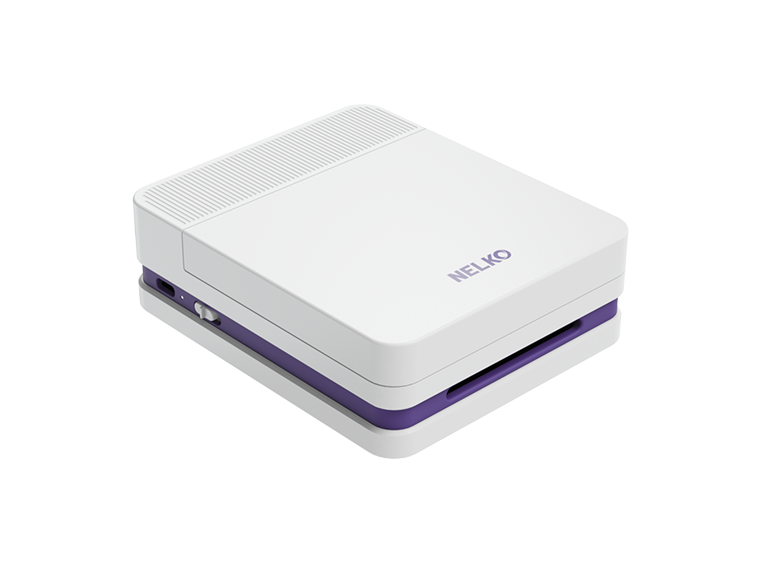
To make the steps easier to follow, we'll use the Nelko P21 Label Printer as an example.

Step 1: Turn on the Label Printer
Press and hold the Nelko P21's power button for about 2 seconds to turn it on. Wait a moment for the printer to start up before moving to the next step. Keeping the printer powered on throughout the setup will help prevent connection interruptions.
Step 2: Turn on Bluetooth on Your Phone
Next, enable Bluetooth on your phone. On an iPhone or Android phone, open Settings and turn on Bluetooth. You don't necessarily need to pair the printer from the phone's Bluetooth menu first. Nelko's app handles the connection directly.
Step 3: Find and Connect Your Printer in the App
Now let's come to "How do I add a printer to my phone"? Just open the NELKO App on your phone. In the app, search for your P21 printer and Click it. Tap the printer to connect. Once the app shows that the P21 is connected, the phone and printer are ready to communicate. You can then move on to creating your first label.
Step 4: Print a Test Label
Before creating a detailed label, print a simple test label. If everything looks good, your Bluetooth connection is working and you can start creating the labels you actually need.
Common Bluetooth Connection Problems and How to Fix Them
Even when the setup is simple, Bluetooth label printers can sometimes have connection problems. Here are some of the most common issues and what you can do about them.
| Issue | Cause | Solution |
| Printer not found | The printer is off, Bluetooth is disabled on the phone, or app Bluetooth permission is not enabled | Turn on the printer and Bluetooth, then give the app Bluetooth permission |
| Printer won't print | The wrong printer is selected in the app | Go to the app settings and select the correct printer |
| Printer goes offline | The battery is low, or the printer is linked to another device | Charge the printer; Disconnect it from other devices before reconnecting |
Directly click here to get the best answer if you still have problems for using the label printer.
How to Use a Bluetooth Thermal Label Printer After Connecting
Once your phone and printer are connected, using the printer is fairly straightforward.
 Create Your Label
Open the printer's mobile app and create a new label. Enter your text and adjust the layout to fit the label. You can also add icons, barcodes, images, frames, or other elements. Keep important information easy to read.
Preview the Label
Before printing, check the label preview carefully. Look at the text size, alignment, spacing, and overall layout. A quick preview can help you catch mistakes before using a label. This is especially useful when you're printing multiple labels with the same design.
Tap Print and wait for the label to finish feeding through the printer before removing it. If the result looks correct, you can continue printing additional labels. A label printer can also be useful for seasonal and creative projects. For example, you can print gift tags for Christmas by creating a simple holiday design in the app. If you're looking for free gift tags to print, you can also start with a free template or customize your own design before printing it on compatible label paper.
Final Thoughts
Once you've checked compatibility, turned on Bluetooth, and connected the printer through the specific app, you can start creating and printing labels in just a few steps.
Embracing Bluetooth label printer like Nelko P21 can make everyday tasks faster and more convenient. Just easily create and print labels directly from your phone without dealing with cables or a computer. With the right setup, you can enjoy a smoother, more flexible printing experience whenever you need it.
FAQs
Why can't the app find my Bluetooth label printer?
Check that the printer is turned on, your phone's Bluetooth is enabled, and the app has Bluetooth permission. The printer may also be connected to another device or too far away from your phone.
Should I pair the printer in my phone's Bluetooth settings?
No. Do not connect the printer from your phone's system Bluetooth settings first. As mentioned above, turn on Bluetooth, open the NELKO app, and connect the P21 from inside the app.
Why is my Bluetooth label printer connected but not printing?
Check that you're using the correct printing app and that the right printer is selected inside the app. Also check the label paper, battery level, and connection status.
Can I connect my Bluetooth label printer to more than one mobile?
It depends on the printer model. Some printers can remember more than one device, but many can only maintain an active connection with one phone or tablet at a time.
Why does the printer app ask for Bluetooth or location permission?
The app needs Bluetooth permission to find and connect to the printer. On some Android phones, location permission may also be required for Bluetooth device discovery. Allow the requested permissions, then reopen the app and connect again.
Can I use a Bluetooth label printer as a name tag printer?
Yes. A Bluetooth label printer can be used as a name tag printer for parties, events, classrooms, offices, and other activities. Simply create a name tag design in the printer's mobile app, enter the names you need, preview the layout, and print the tags directly from your phone.