

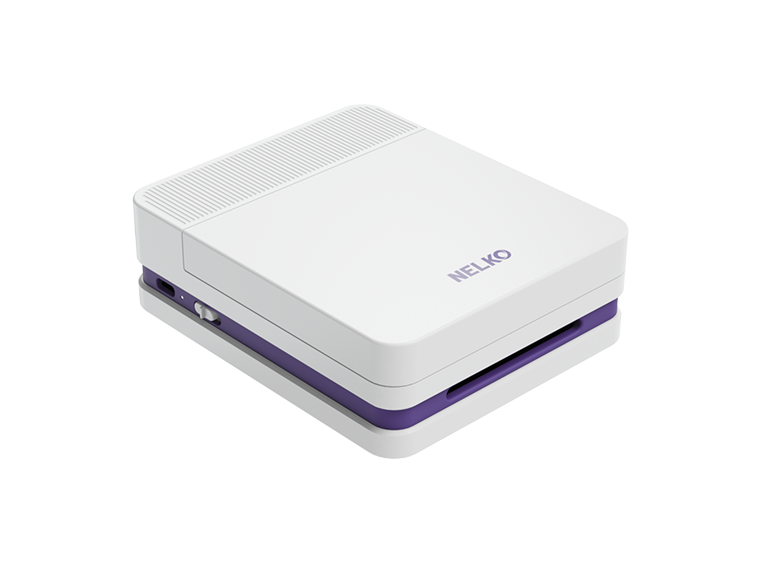


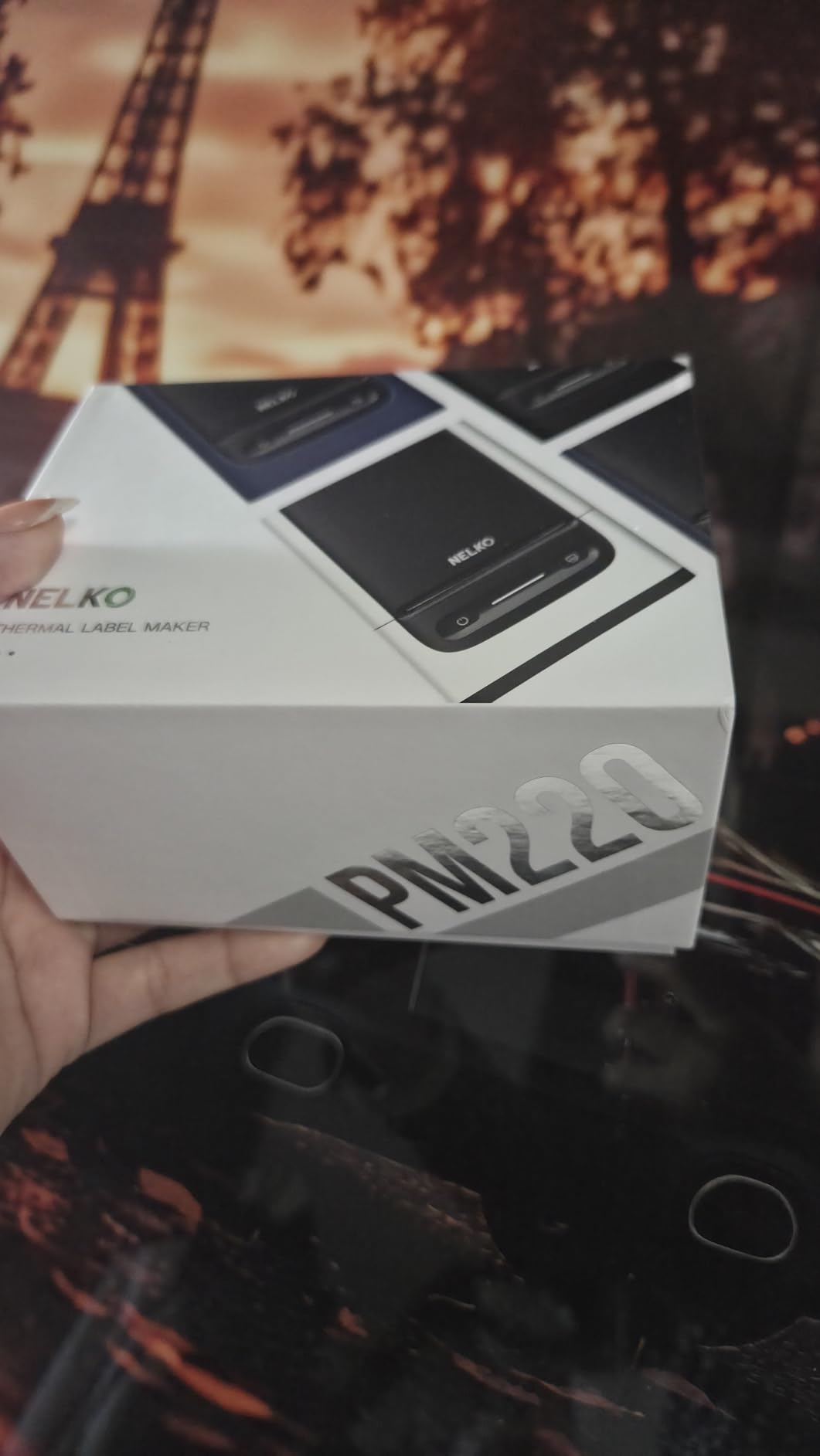
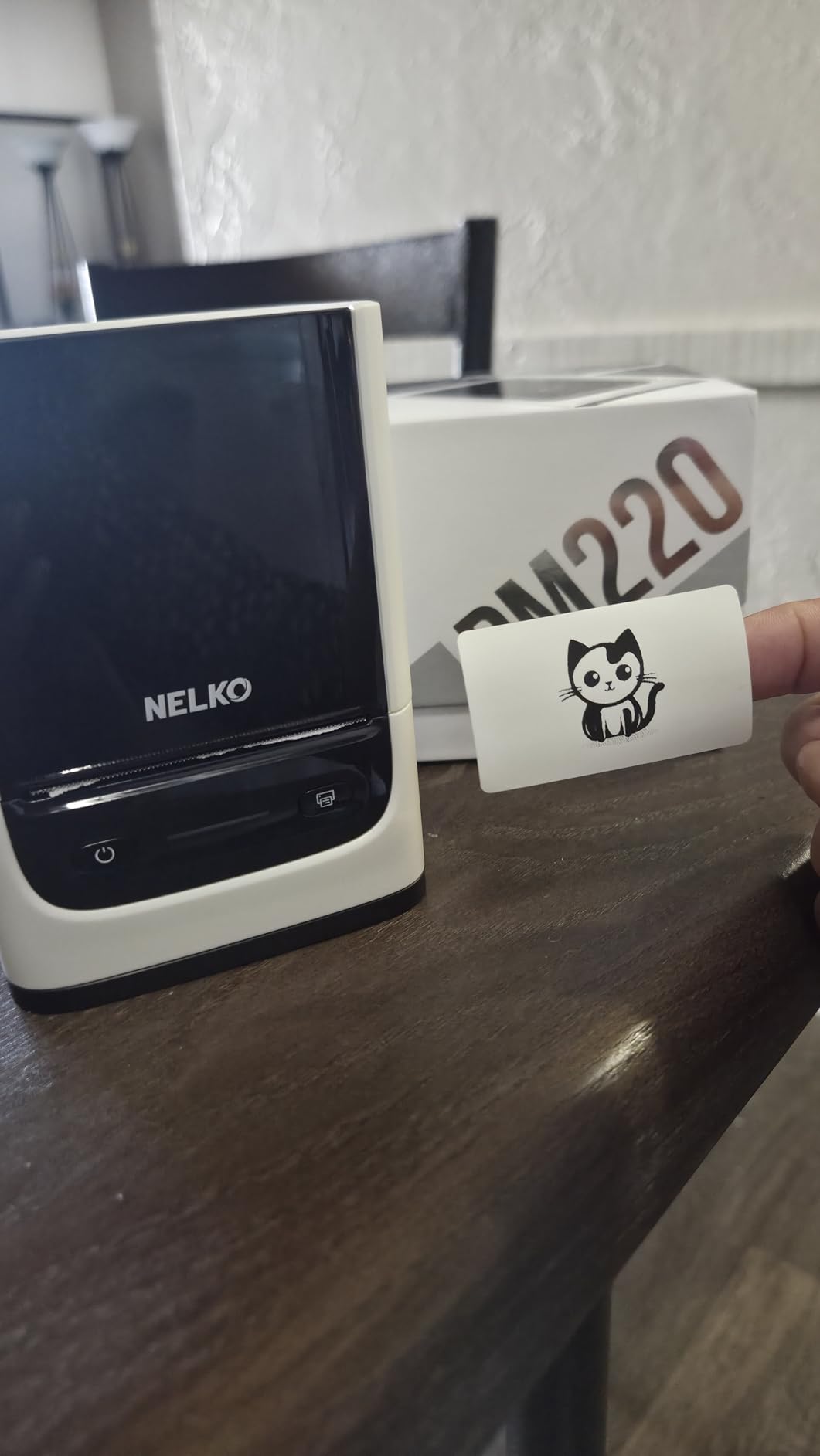
NELKO PM220 Bluetooth Label Printer
$42.99
$45.99
7% Off
Color :
White
数量
Total:
$42.99
$45.99
Total:
$42.99
$45.99
Supported payment methods:


-
Fast Delivery
2-5 business days after dispatch
-
15-Day Replacement
Free replacement for quality issues
-
After-Sale Support
Support beyond the return window
Special Offers


FAQ
What is the NELKO PM220 used for?
Does the PM220 need ink, toner, or ribbon?
What label width does the PM220 support?
Can the PM220 print barcodes and QR codes?
Can I use the PM220 with a computer?
What labels can I use with the PM220?
Reviews

Specifications
Main Functions
- Create and print custom labels from your phone via Bluetooth or connect to a Mac via USB
- Automatically recognizes the installed label size—simply load the labels and start printing
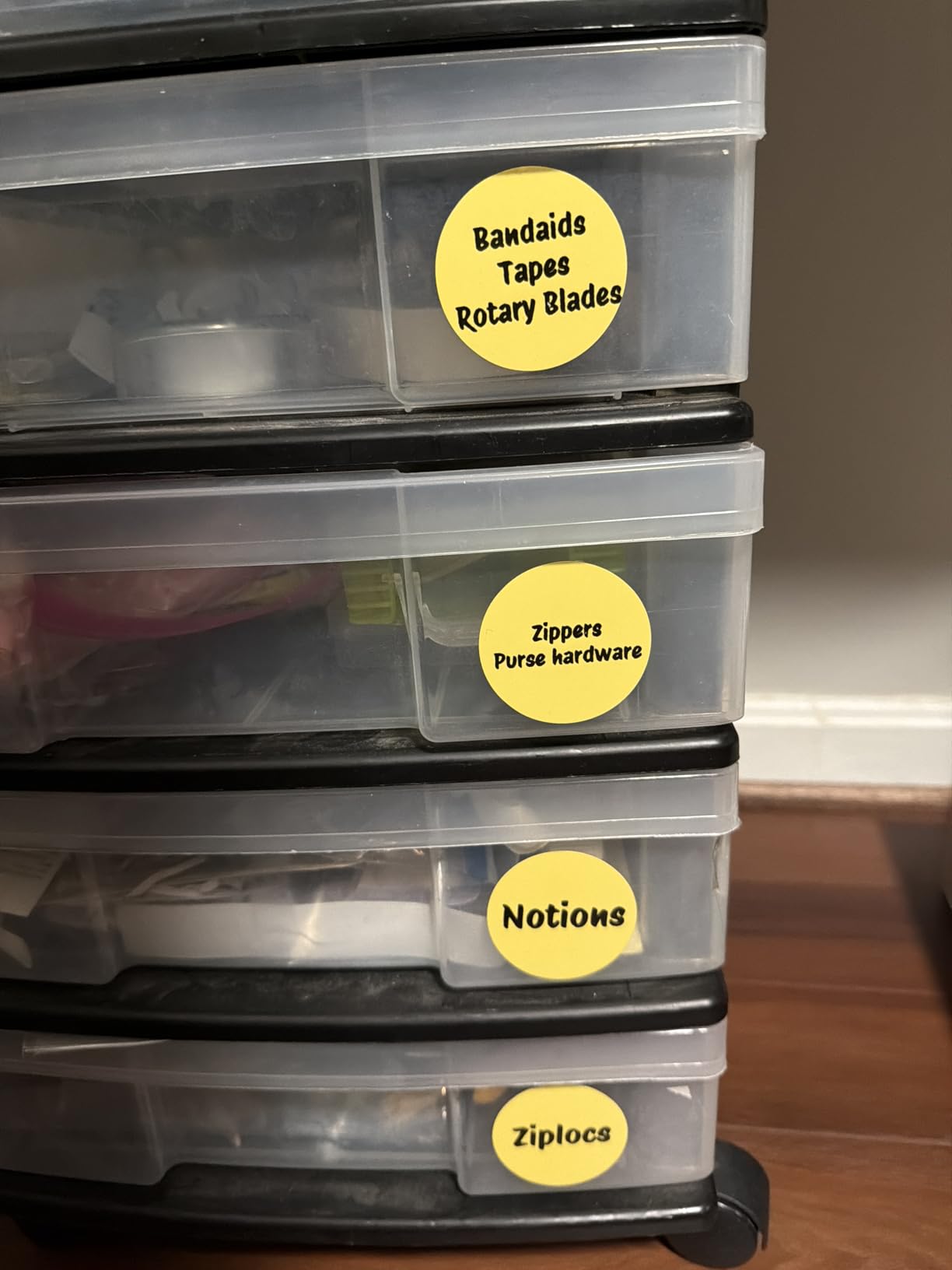
- Supports labels from 23 to 54 mm wide for organizing, journaling, shipping, and other everyday uses
- Prints clear labels at 203 dpi and speeds up to 40 mm/s
- Uses direct thermal technology—no ink or toner required
- Compact, lightweight design with a rechargeable battery for portable use
- Convenient Type-C charging
- Product size (L × W × H): 113 × 85 × 63 mm
In-the-box
- 1 × Label Roll
- 1 × Type-C Charging Cable
- 2 × Instruction Manuals
Explore More


NELKO PP01 Bluetooth Photo Printer
Keep the magic of the moment alive with instant, vibrant prints right from the palm of your hand

NELKO P21 Portable Bluetooth Label Printer
Create custom labels in seconds with our most portable, everyday organizing tool

NELKO PL70E Thermal Shipping Label Printer
Streamline your workflow with a reliable companion designed for modern shipping

NELKO PM220 Bluetooth Label Printer
Turn your ideas into custom labels or create your own DIY sticker albums with one perfectly portable tool
