



Shipping Label Size Guide & How to Make a Shipping Label
Choosing the right shipping label size helps you print clear labels and prepare packages correctly.
For many US online sellers, 4 × 6 inches is the standard shipping label size used for everyday parcel shipping. However, other sizes and formats are available. This guide explains common shipping label sizes, carrier requirements, how to choose the right label, and how to create and print shipping labels.
What Size is a Shipping Label?
Here are several common sizes and the situations in which they may be used.

4 × 6 inches — Standard shipping label size
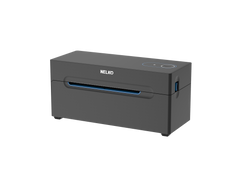
4 × 6 inches is one of the most common answers. This size provides room for the shipping address, barcode, and tracking information. It is widely used by e-commerce platforms and major carriers. A thermal label printer 4x6 is a practical option if you regularly print this format.
2 × 3 inches — Smaller shipping labels
This smaller format may suit small parcels, jewelry boxes, and packages that need less label space. Before using it, check that the required address and barcode remain clear and readable.
2 × 4 inches — Smaller shipping labels
A 2 × 4-inch label may work for small parcels or certain return-label formats. Check your shipping platform's requirements before choosing it. Not every carrier or service supports every size.
4 × 5 inches — Alternative thermal label format
Some shipping systems support 4 × 5-inch labels. For example, this size for certain ZPL and EPL2 label outputs. Its availability depends on the carrier and label format.
4 × 7 inches and 4 × 8 inches — Alternative label formats
Some shipping systems support these sizes. Certain UPS labels generated in 4 × 7 or 4 × 8 formats may contain a 4 × 6 label with extra blank space. DHL Express also supports these sizes. Check the exact output format before printing.
8.5 × 11 inches — US letter-size sheet
This is the size of a standard US letter sheet, not necessarily the size of the shipping label itself. It is useful when printing through an inkjet or laser printer. The sheet may contain one label, multiple labels, or a smaller label positioned on the page.
The Common Shipping Label Requirements by Carriers
The right shipping label size depends on your carrier and shipping service. UPS, USPS, and FedEx commonly support 4 × 6-inch labels, but their other formats and printing options can differ. Check the instructions provided by your carrier or shipping platform before printing.
UPS Shipping Label
A 4 × 6-inch shipping label is a common format for UPS shipments. It supports thermal printers that print 4 × 6-inch labels. UPS WorldShip also supports 4 × 8-inch labels and several letter-size laser label layouts.
If you use a thermal printer, make sure it supports the label size selected in your UPS shipping software. If you use an inkjet or laser printer, select the correct page layout. Check the print preview to make sure the address and barcode are complete.
USPS Shipping Label
A 4 × 6-inch shipping label is a common format for USPS shipments. USPS Click-N-Ship states that online shipping labels should print at approximately 4 × 6 inches.
You can print labels on self-adhesive label paper or plain white paper. Make sure the label is large enough to read. Do not cover the barcode or the postal-use area with tape.
Always check the print preview and confirm that the address and barcode are clear before attaching the label.
FedEx Shipping Label
A 4 × 6-inch label is a common format for FedEx shipments. FedEx's bulk label service offers 4 × 6-inch labels and 4 × 6.75-inch labels with a detachable document tab.
The available label format depends on your shipping service and printing setup. Follow the format provided by your FedEx shipping system and make sure your printer supports it.
Before attaching the label, check that the address and barcode are complete and readable.
DHL Shipping Label
DHL Express generates shipping labels through its online shipping platform. The required format depends on the label and document files provided for your shipment.
After creating your shipment, print the label using the instructions provided by DHL. Make sure the label prints at the intended size and that all required information is visible.
For international shipments, check whether your shipment also requires customs forms or other supporting documents. Keep the shipping label and any required documents ready for pickup or drop-off.
How to Choose the Right Shipping Label Size
Choosing the right shipping label size comes down to four main factors: carrier requirements, package size, printing volume, and printer compatibility.

Check the Carrier Requirements
Start by checking the format provided by UPS, USPS, FedEx, or your shipping platform. A size that works for one shipping workflow may not be available for another.
If you use an online marketplace, check its label instructions before buying labels in bulk.
Consider the Package Size
Choose a label that fits the available space without covering folds or edges. A 4 × 6-inch label works for many boxes and poly mailers, but it may look too large on a small envelope.
Do not choose a smaller format unless it is supported and keeps all required information readable.
Think About Your Printing Volume
Your daily shipping volume can affect which label format and supply type work best.
If you print many labels each day, fan-fold labels may be convenient because they are stacked flat. Roll labels can be a practical choice for smaller operations and compact workspaces.
Check Printer Compatibility
Not every printer supports every label size. A thermal label printer usually works with specific label widths and formats. A standard inkjet or laser printer uses compatible sheets or paper.
Before buying labels, confirm that your printer supports the size and format you plan to use. This can help prevent incorrect scaling and misaligned prints.
How to Make a Shipping Label
Learning how to make a shipping label starts with preparing the correct shipment details. You can create a label through your carrier's website or a supported shipping platform.
Step 1: Prepare the Address Information
Enter the sender's and recipient's addresses. Check the names, street addresses, and ZIP codes carefully.
Step 2: Choose a Carrier and Shipping Service
Select a carrier such as UPS or USPS. Choose a shipping service that meets your delivery needs.
Step 3: Enter the Package Details
Provide the required package weight and dimensions. Review the details before continuing.
Step 4: Create the Shipping Label
Follow the shipping platform's instructions to generate the label. Download or open the resulting file.
If you are wondering how to create a shipping label for a thermal printer, check that the generated label format matches your printer's supported sizes.
How to Print Shipping Labels
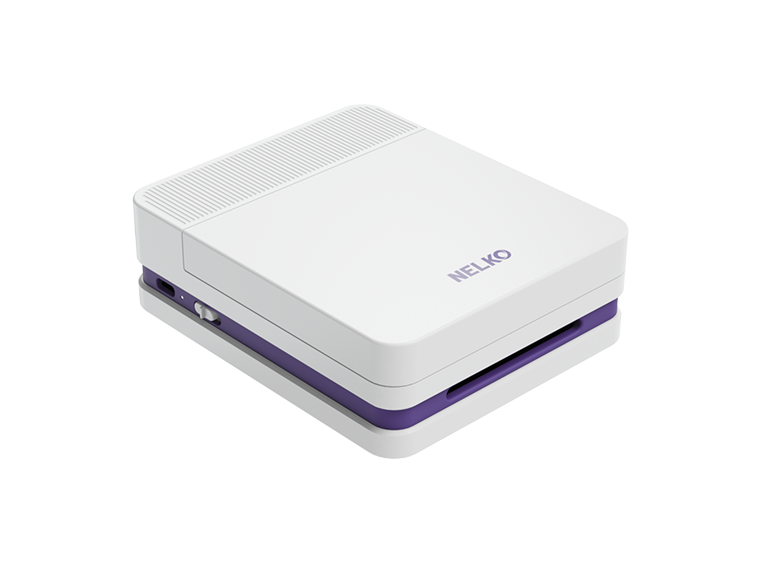
Afrer creating the shipping labels, you can print labels through a great thermal bluetooth label printer. Take the Nelko PL70E as an example, it supports 4 × 6-inch shipping labels and other compatible thermal label sizes. Before printing, make sure the label size in your file matches the labels loaded in the printer.

Step 1: Connect the PL70E to Your Device
You can connect the PL70E to a computer through USB or use Bluetooth printing on a supported device.
For Windows, install the PL70E driver before printing. On a Mac, connect through USB and install the required driver. For phone printing, install the Nelko app and connect to the printer through Bluetooth.
Step 2: Load the Correct Thermal Labels
Load compatible thermal labels into the PL70E. Adjust the paper guides so the labels feed straight through the printer.
Make sure the loaded label size matches your print settings. If you change the label size or type, calibrate the printer before printing.
Step 3: Check the Print Settings
Open your shipping label file and check the print settings.
Step 4: Preview and Print
Check the print preview before starting. Make sure the address and barcode are fully visible.
Send the label to the PL70E and check the printed result.
Conclusion
The right shipping label size depends on your carrier, package, printing method, and shipping workflow. A 4 × 6-inch label is a common choice for e-commerce orders, but other sizes may be available for specific services and printing systems.
Ready to simplify your shipping process? Try the NELKO PL70E to print your shipping labels with ease.
FAQs
Can I Use Regular Paper Instead of Adhesive Shipping Labels?
Yes, some carriers allow labels printed on plain paper. You may need to cut out the label and attach it securely. Check your carrier's instructions and keep the barcode visible.
Do Amazon, eBay, and Other Online Marketplaces Use Specific Label Sizes?
The format can depend on the marketplace, carrier, and shipping service. Check the label instructions provided when you create your shipment.
How Do I Print a UPS Shipping Label If I Don't Have a Printer?
Check whether a UPS Store or another supported location can print the label for you. Printing services, fees, and QR-code options may vary by location and shipment. Confirm availability before visiting.
Can UPS Print a Shipping Label for Me?
Some UPS Store locations offer label-printing services. Contact your local store to confirm the service, cost, and what shipment information you need to bring.